cognni
The console
The screens, what they show, and what you can do on them.
- Places
- Overview through Settings, in the order of the left rail.
- Pictures
- The light theme, at desktop width, on the demonstration data.
- Period in view
- November 2026, unless a picture says otherwise.
01
The console
Seven places stay on the left, in this order: Overview, Activity, Inventory, Review, Forensics, Reports, and Settings. The bar across the top is the scope. Every count on the page belongs to it.
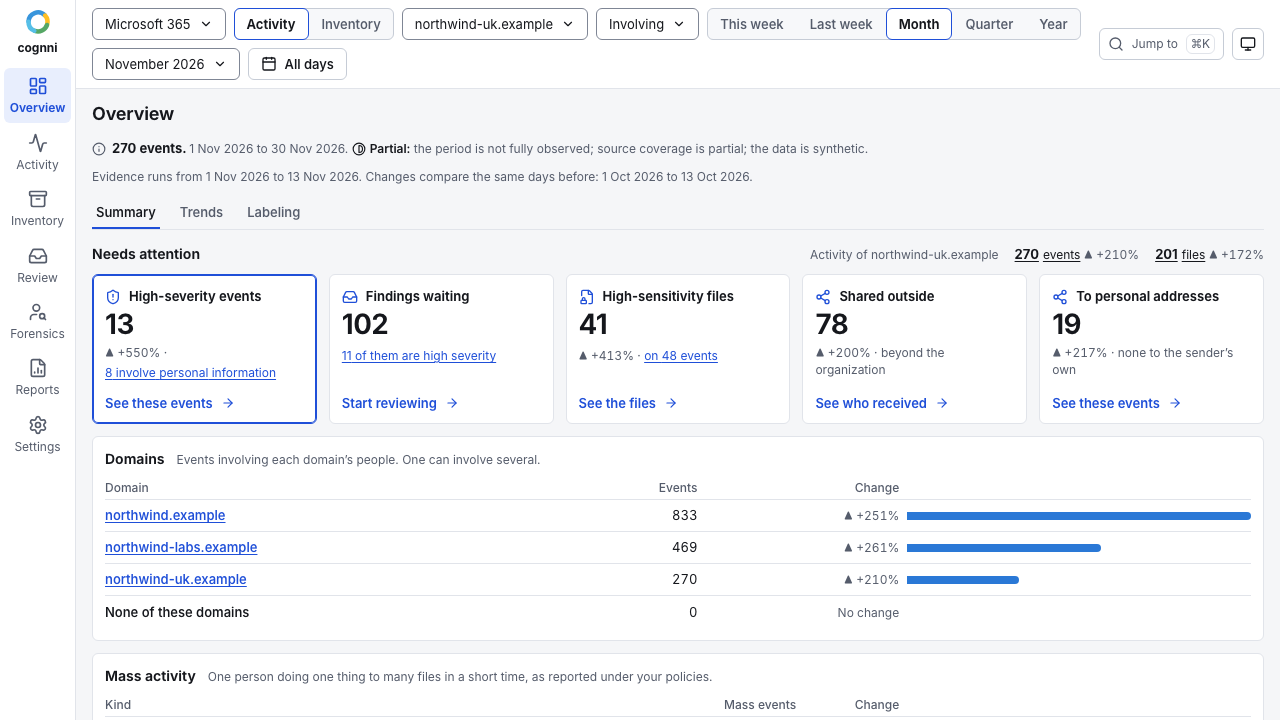
Here the source is Microsoft 365, the view is Activity, the domain is northwind-uk.example, and the part its people play is Involving. The month is November 2026, all days. Needs attention is the same five cards, counted for that slice: 270 events.
- Source. Microsoft 365, Google Suite, Microsoft Copilot, Shadow AI, AI Agents, or On Premises Shared Folders. On Premises Shared Folders opens on Inventory.
- Activity or Inventory. Activity is what happened in the period. Inventory is the files as last known, and offers a site in place of the period.
- Domain. All domains, or one of the organization’s domains. With one domain chosen, Activity can be Involving, Initiated by, or Received by. Inventory can be Owned by or Shared with.
- Period. This week, Last week, Month, Quarter, or Year, then the month, then All days or a span of days inside it.
- Jump to. Ctrl K, or ⌘K, opens a page, a person, a file, or a finding.
- Theme. The control at the far right follows the system, or stays light, or stays dark.
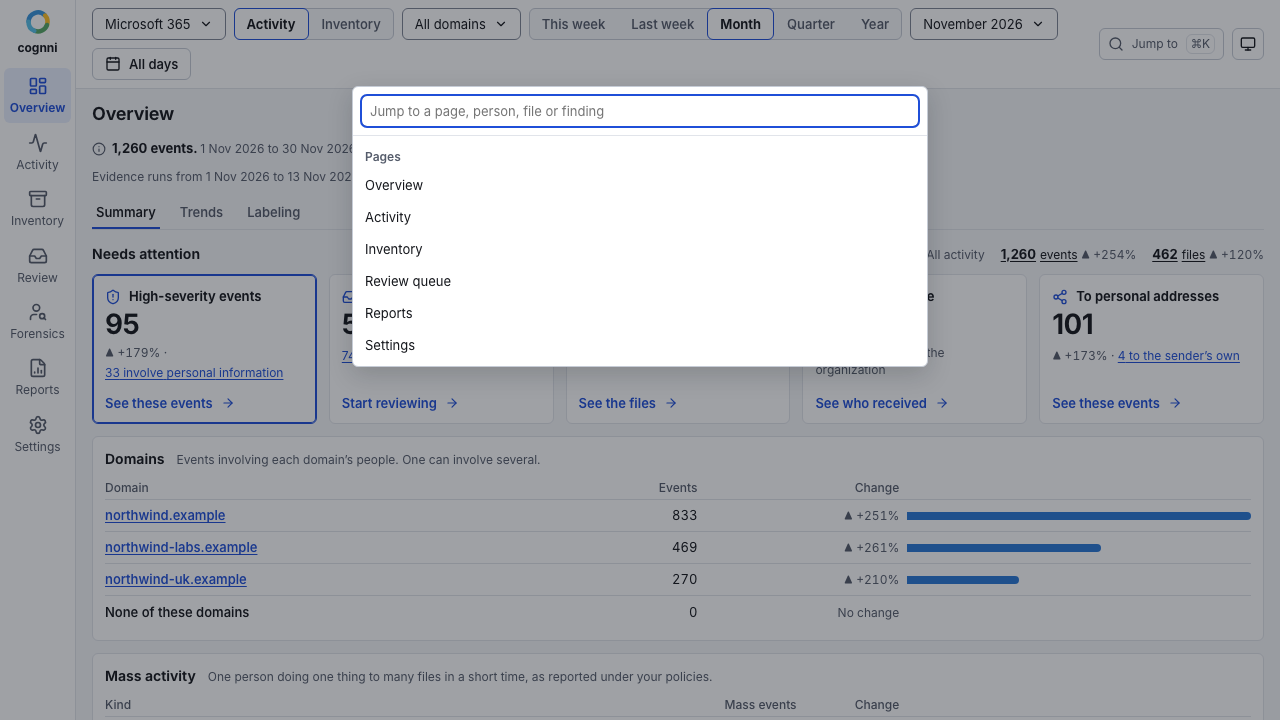
⌘K, or Ctrl K, opens Jump to a page, person, file or finding. Pages stay listed first. Typing narrows to people, files, and findings in the current source and domain. Choosing one opens that place with the same scope where it applies.
The line under the page title gives the count, the dates, and a coverage note. In these pictures the note says the period is partly observed and the data is the demonstration set. A change beside a figure compares the same days in the previous period. When the evidence stops part-way through the month, the comparison uses those same days of the month before.
Lists share a few habits. Saved views keeps the filters of the list you are on. Export results takes every row those filters match. Columns chooses the fields. Compact rows tightens the list. With single-key shortcuts on, J and K move through the rows, Enter opens one, Esc closes it, and / searches.
Opening a row slides a panel over the list: an event, a file, a finding, or a person. The same panel can open from any screen that names that thing.
02
Overview
Overview is the first reading of the scope. Summary, Trends, and Labeling are always there. AI activity joins them when the source is Microsoft Copilot, Shadow AI, or AI Agents.
Summary
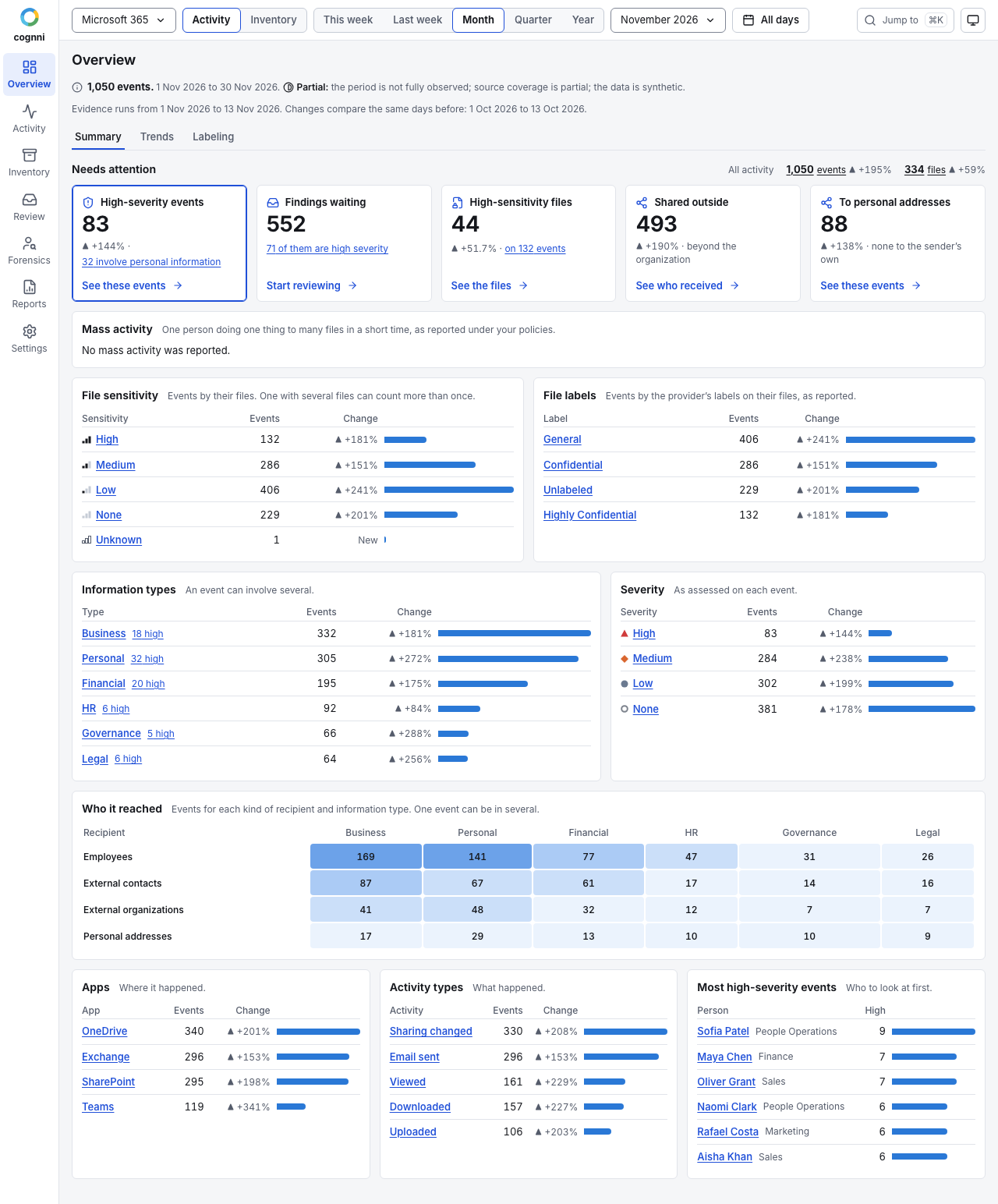
Microsoft 365, Activity, November 2026: 1,050 events. Each block is a count you can open. The link under a card or a bar carries the same filters into Activity.
- Needs attention. High-severity events, Findings waiting, High-sensitivity files, Shared outside, and To personal addresses. Each card shows its change and a way through: See these events, Start reviewing, See the files, or See who received.
- Mass activity. One person doing one thing to many files in a short time, as reported under your policies. This month has none on the full scope; the domain picture in the previous chapter shows the same block.
- File sensitivity and File labels. Sensitivity is how the file was classed. Labels are what the provider shows, such as General, Confidential, and Highly Confidential.
- Information types. Business, Personal, Financial, HR, Governance, and Legal. One event can hold several, and the union counts it in each.
- Severity. High, Medium, Low, and None, as assessed on the event.
- Who it reached. A grid of each kind of recipient against each information type. One event can sit in several cells. Darker cells are more events.
- Apps and Activity types. Where it happened, such as OneDrive, Exchange, SharePoint, and Teams, and what happened, such as Sharing changed, Email sent, Viewed, Downloaded, and Uploaded.
- Most high-severity events. Who to look at first: people, with department, ordered by high-severity events.
Inventory overview
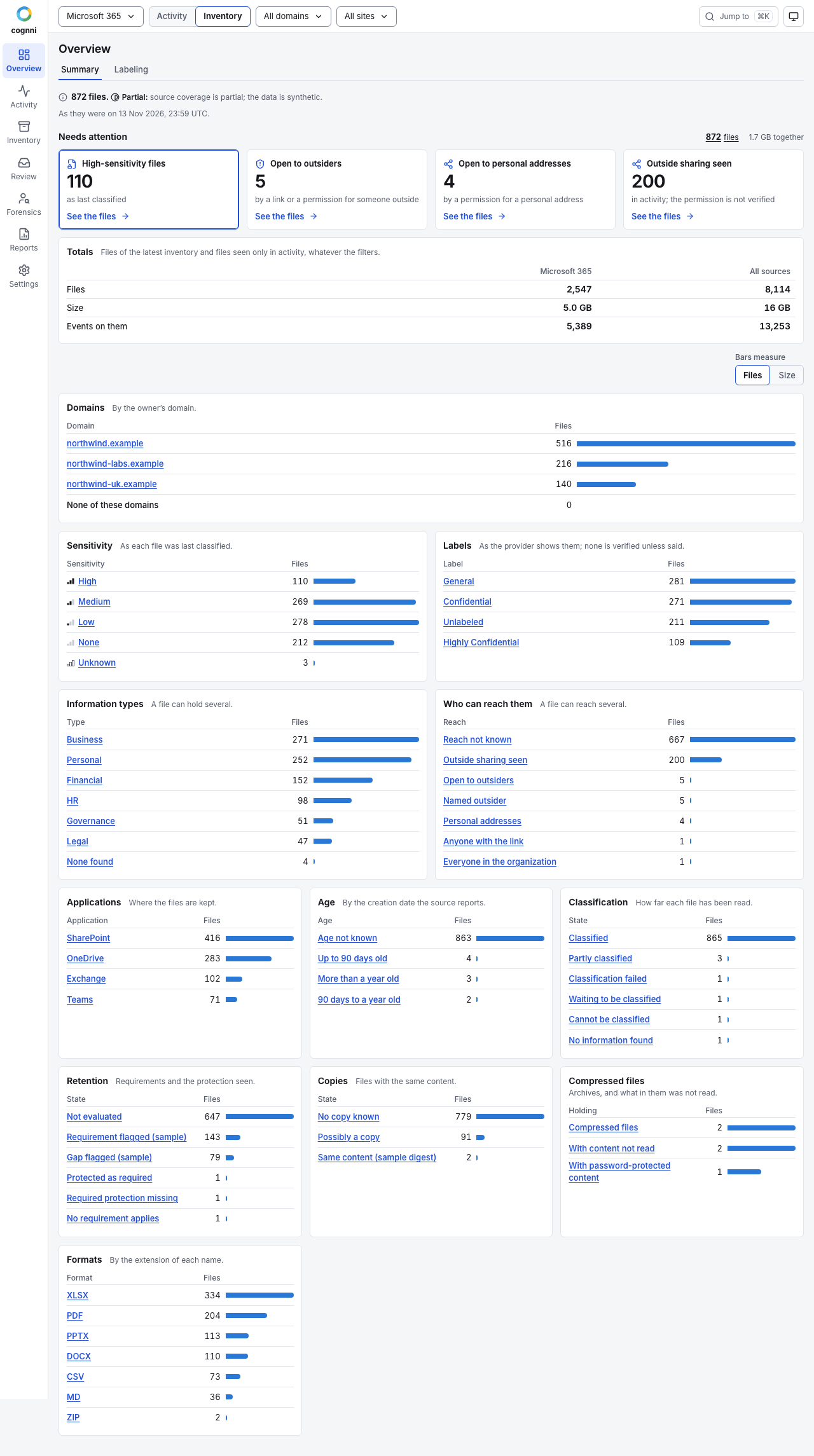
Choosing Inventory in the scope bar turns Overview into the current files. Needs attention becomes High-sensitivity files, Open to outsiders, Open to personal addresses, and Outside sharing seen. The breakdowns match Inventory’s summary: sensitivity, labels, information types, who can reach them, applications, age, classification, retention, copies, compressed files, and formats. Labeling and Trends stay available; AI activity stays with AI sources.
Trends
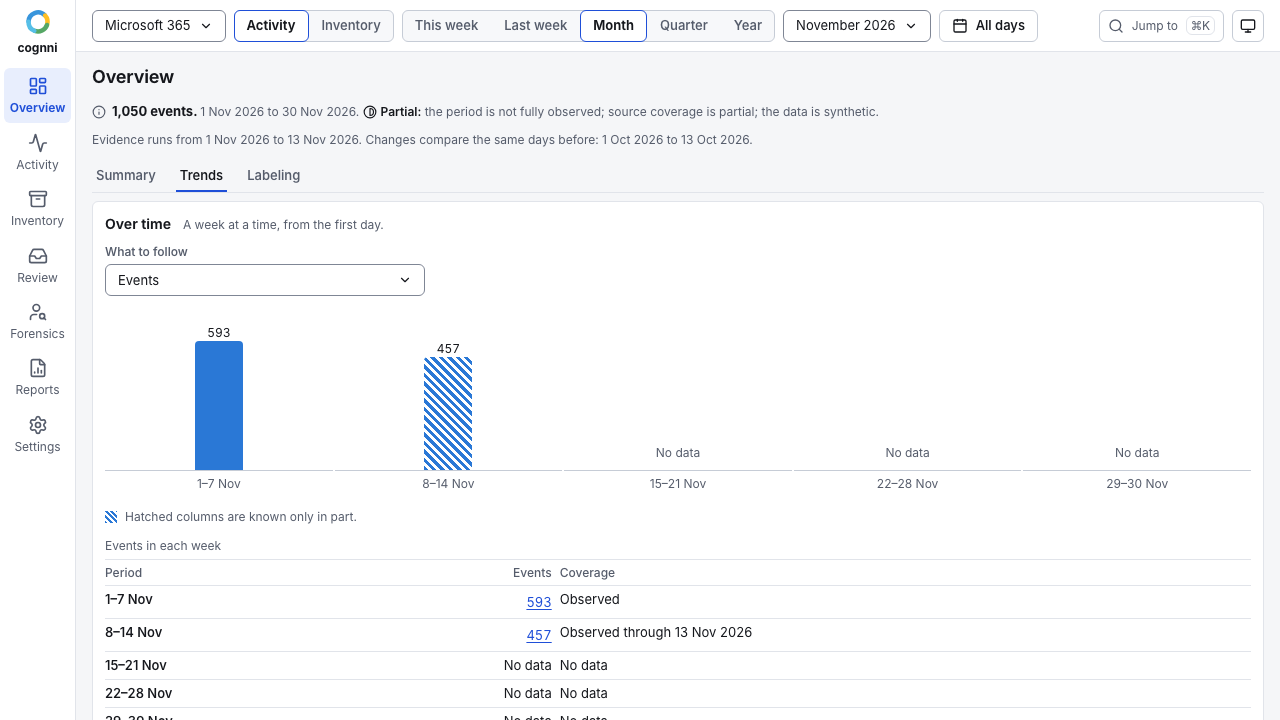
Over time, a week at a time from the first day. What to follow chooses the series; here it is Events. A solid column is fully observed. A hatched column is known only in part, and the table underneath says so: 8–14 Nov is observed through 13 Nov 2026, and the later weeks have no data.
Labeling
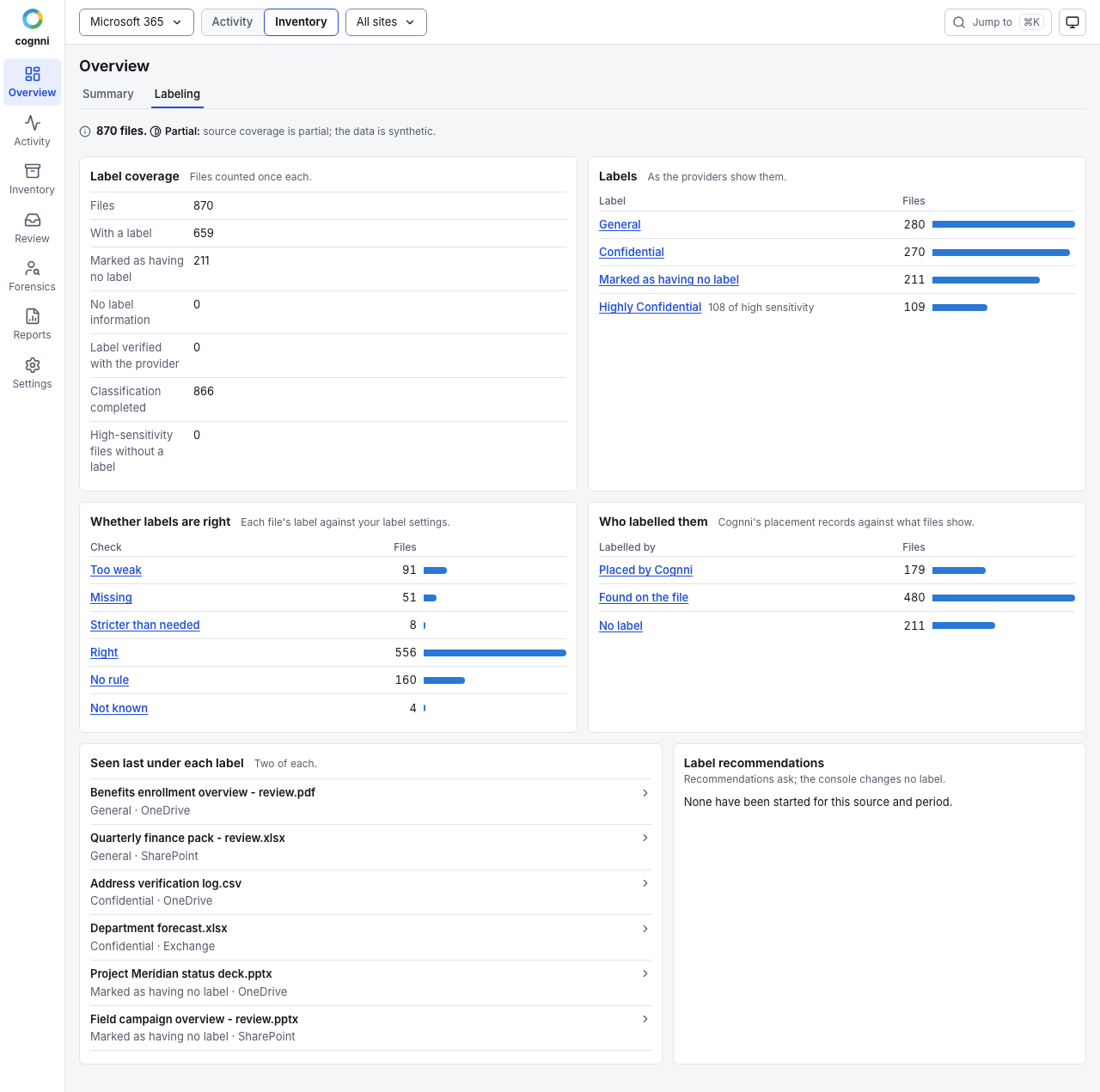
With Inventory selected, labeling is about the current files: 870 of them in this picture. Activity has the same tab for the events of the period.
- Label coverage. Files counted once each: with a label, marked as having no label, label verified with the provider, classification completed, and high-sensitivity files without a label.
- Labels. As the providers show them. Highly Confidential notes how many of those files are high sensitivity.
- Whether labels are right. Each file’s label against your label settings: Too weak, Missing, Stricter than needed, Right, No rule, and Not known.
- Who labelled them. Placed by Cognni, Found on the file, or No label. These are Cognni’s placement records against what the files show.
- Seen last under each label. Two files of each, with the label and the app, opening the file.
- Label recommendations. A recommendation asks for a label change. This source and period has none started.
AI activity
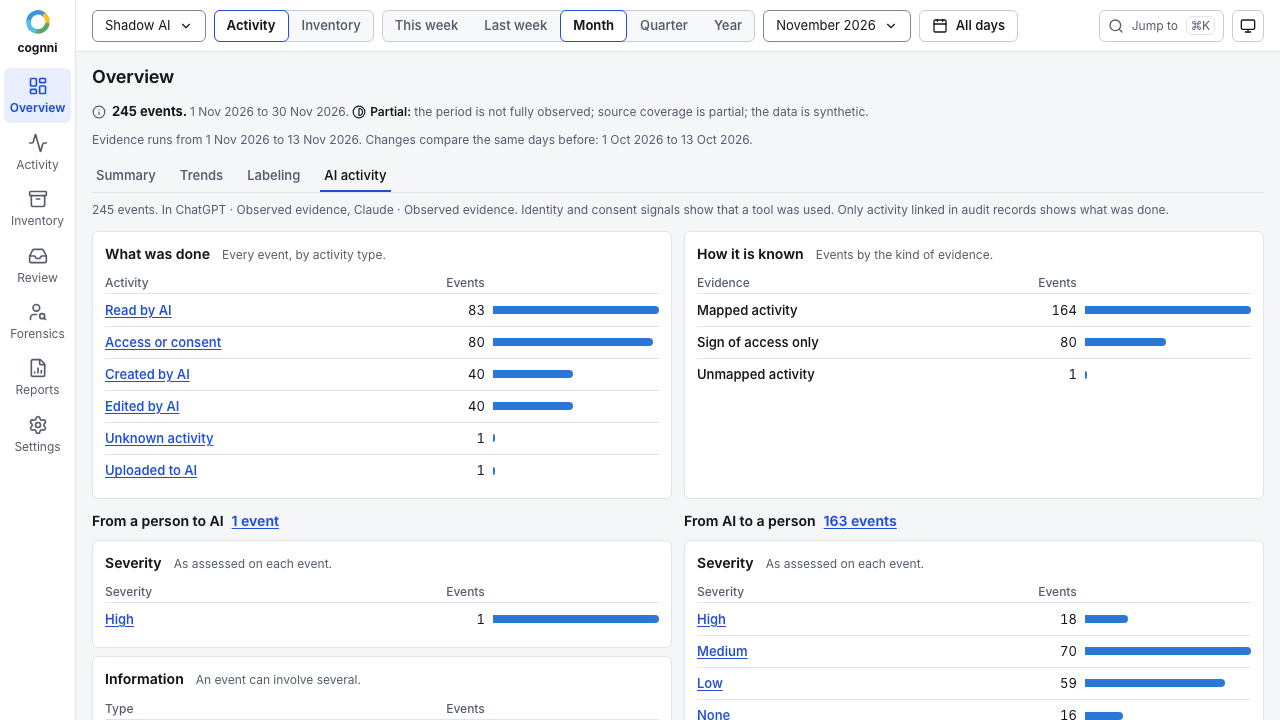
Shadow AI, November 2026, 245 events. The line under the tabs names the tools in the evidence, here ChatGPT and Claude, and separates two claims: identity and consent show that a tool was used, and only activity linked in audit records shows what was done.
- What was done. Read by AI, Access or consent, Created by AI, Edited by AI, Unknown activity, and Uploaded to AI.
- How it is known. Mapped activity, Sign of access only, and Unmapped activity.
- Direction. From a person to AI, and From AI to a person, each with severity and information type.
03
Activity
Activity is the list behind the overview. Five tabs share the scope: Events, Related files, Shared links, Mass activity, and Information types. Filters stay as you move between them. A count chip narrows the list and leaves the other filters in place.
Events
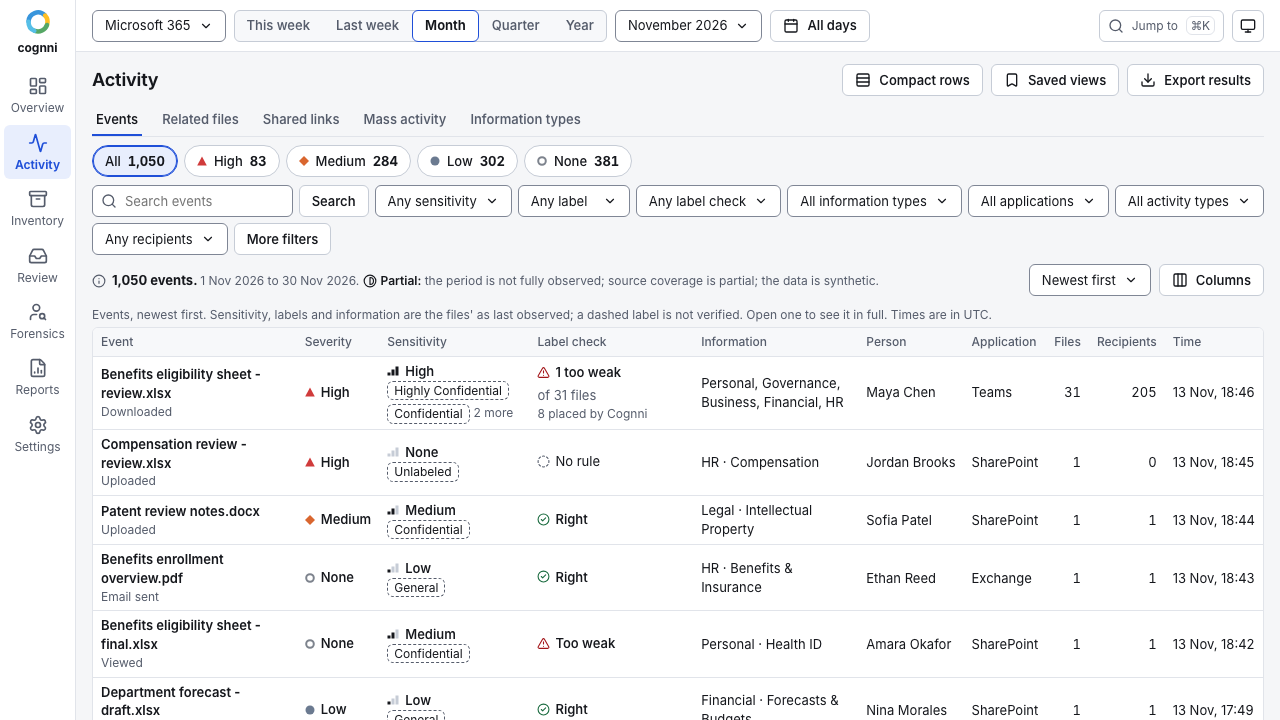
1,050 events, newest first. A row is one event: the file, what happened, and when. Times are in UTC. Sensitivity, labels, and information are the file’s as last observed, which can differ from the moment of the event. A dashed label is unverified.
- Severity chips. All, High, Medium, Low, and None, with the count of each.
- Filters. Search, sensitivity, label, label check, information types, applications, activity types, recipients, and More filters.
- Label check. The file’s label against your settings: Right, too weak, stricter than needed, missing, no rule, or not known.
- The row. Event and action, severity, sensitivity, label check, information, person, application, files, recipients, and time. Enter opens the event.
Related files
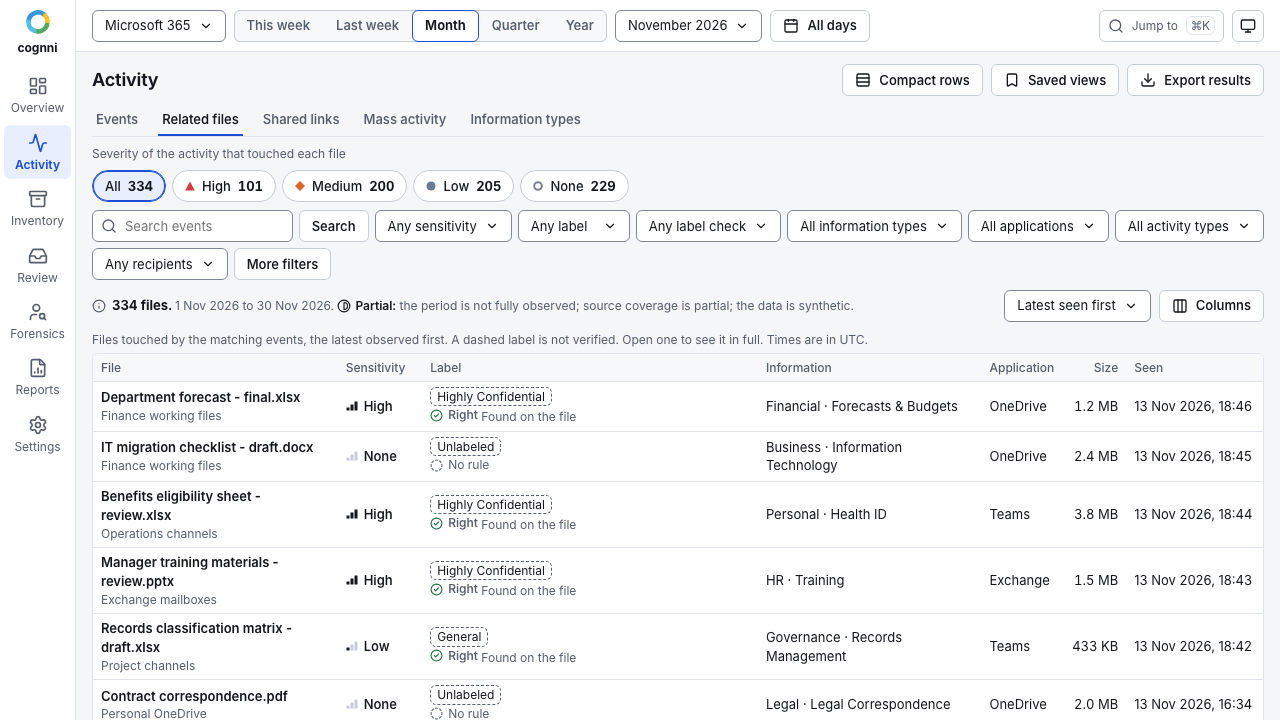
Files touched by the matching events, the latest observed first. The chips are the severity of that activity, so the same scope can show 1,050 events and 334 files. A file opens in full from its row. The label line says whether the check is Right and whether the label was found on the file.
Shared links
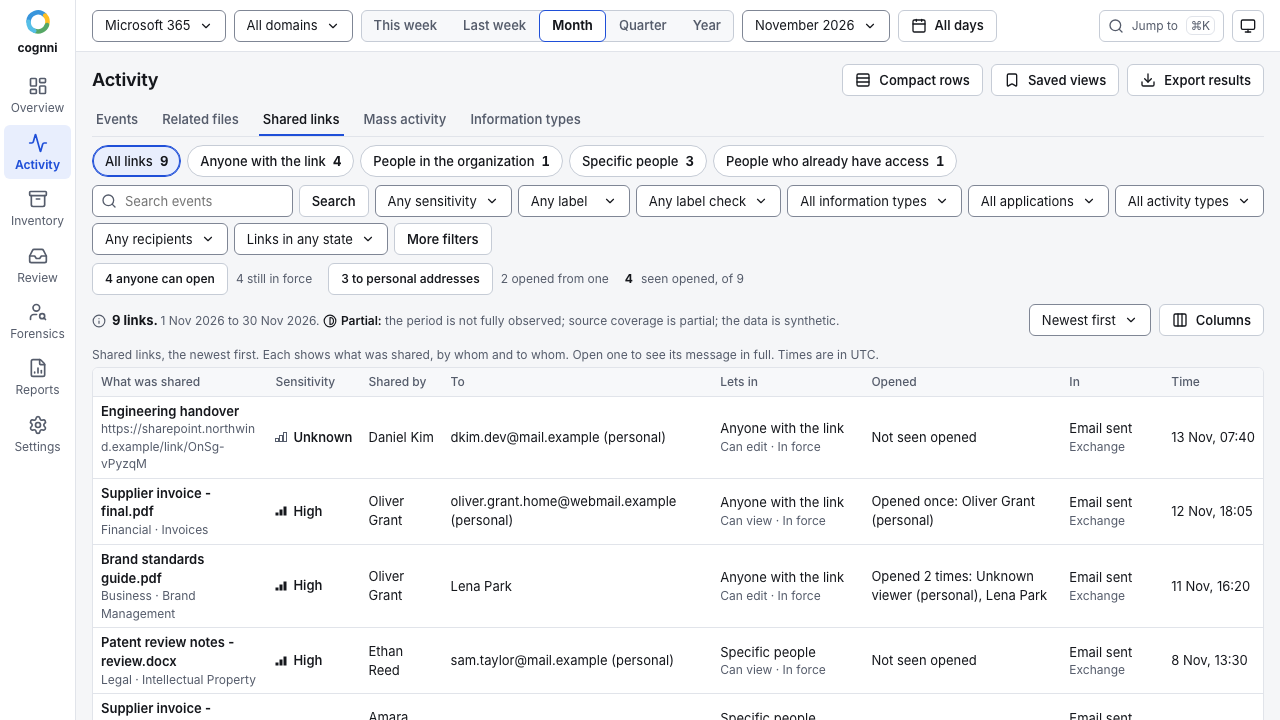
Every link carried in an email or message in the scope. Chips are whom the link lets in: Anyone with the link, People in the organization, Specific people, and People who already have access. Figures above the list count anyone can open, still in force, to personal addresses, opened from one, and seen opened.
- The row. What was shared, sensitivity, shared by, to (with personal marked), lets in, opened, in which app, and time.
- Open a row to see the message that carried the link, then the file itself from there.
Mass activity
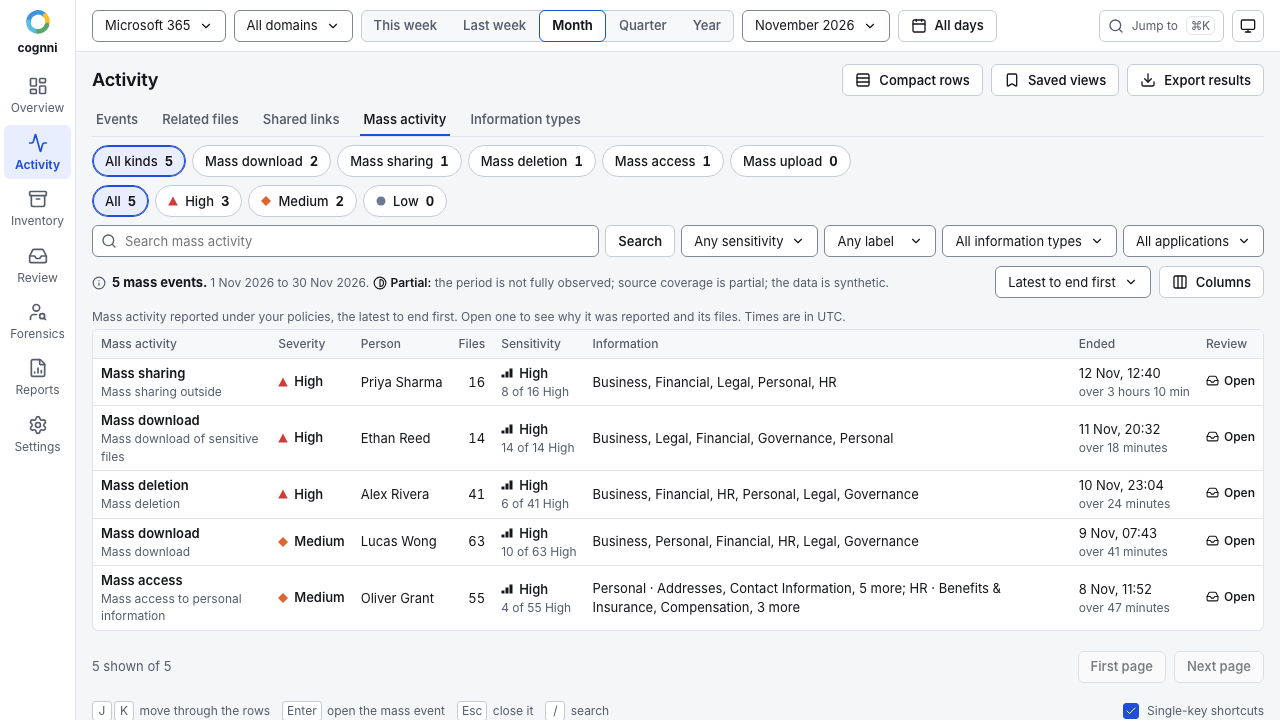
Mass activity reported under your policies, the latest to end first. This month has five. Open one to see why it was reported and which files it holds.
- Kinds. All kinds, Mass download, Mass sharing, Mass deletion, Mass access, and Mass upload.
- The row. Kind, severity, person, how many files and how many of them are high sensitivity, the information types, when it ended and how long it ran.
- Review. Open goes to the finding for that mass event.
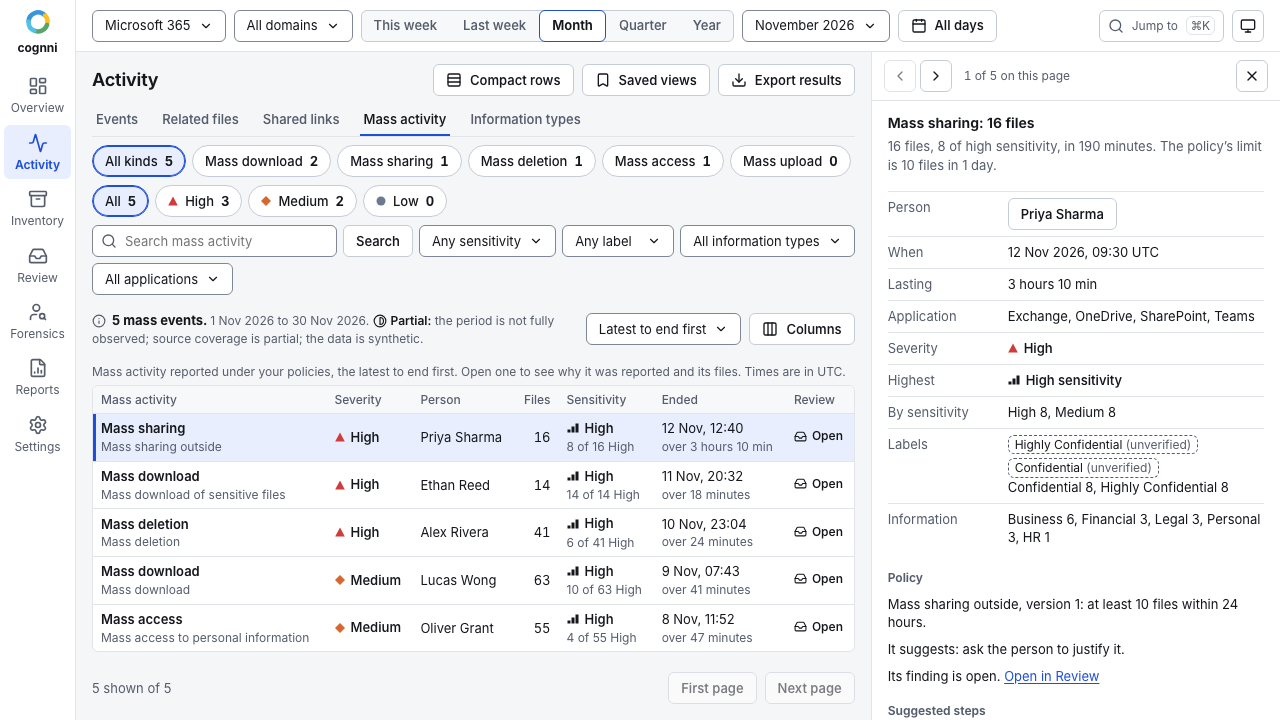
Opening a mass row shows why it was reported: the person, when it ran, the apps, the labels and information on the files, and the published policy it matched. Cognni can suggest asking the person to justify it. Open in Review goes to the finding.
Information types
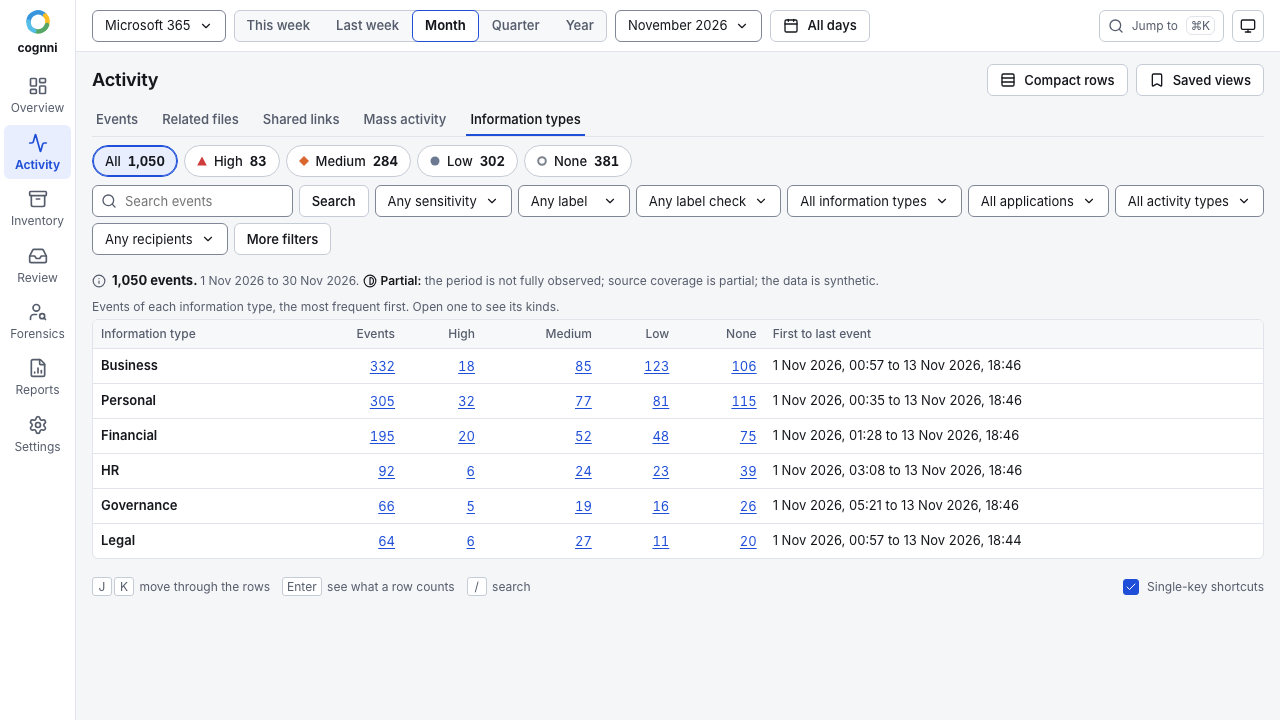
The same 1,050 events, counted by information type, most frequent first. Each row splits into High, Medium, Low, and None, and gives the time from the first event to the last. Enter on a row shows what it counts. This tab is a summary; the Events tab is what Export results takes.
An event
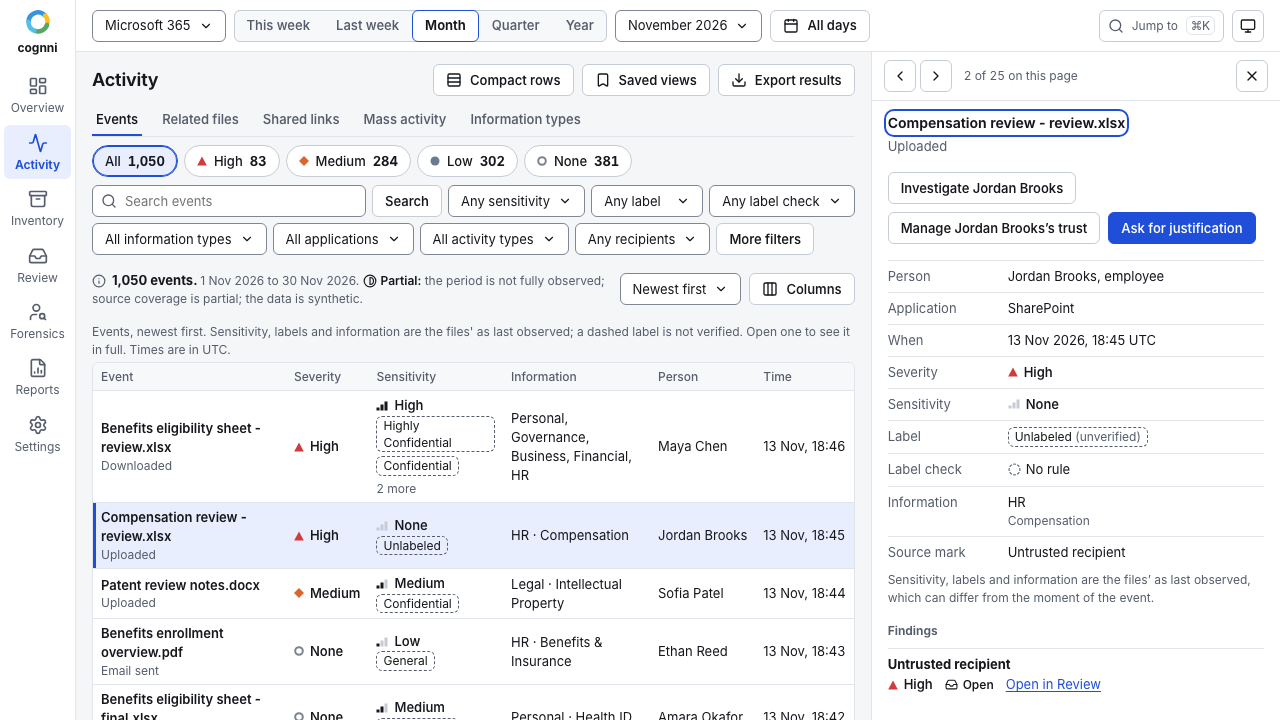
The panel sits over the list. This one is Compensation review - review.xlsx, uploaded to SharePoint by Jordan Brooks on 13 Nov 2026. Arrows at the top move through the events on the page.
- Investigate Jordan Brooks opens that person in Forensics. Manage Jordan Brooks’s trust opens their trust settings. Ask for justification starts a question to them, which Review keeps under Cases.
- The facts. Person, application, when, severity, sensitivity, label, label check, information, and source mark. Here the source mark is Untrusted recipient, the sensitivity is None, and the label check is No rule.
- Findings. Each finding on the event, with severity and state. Open in Review goes to that finding.
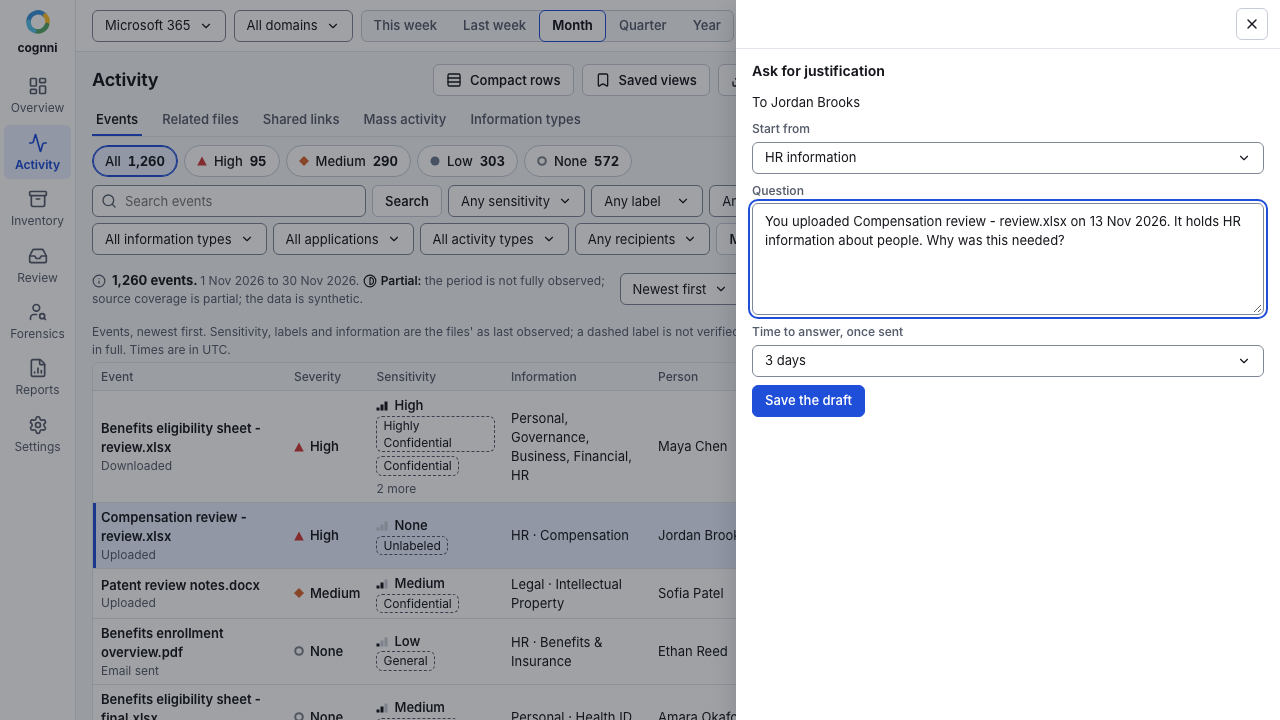
From an event, a finding, or a mass event. The recipient is the person on the evidence. Start from chooses which message template to begin with, such as HR information. The question is editable. Time to answer sets the deadline. Save the draft places it in Review → Cases, from which you send the recipient their link.
04
Inventory
Inventory is the files as last known. The scope is the source and, if you choose, a site. Summary, Files, Sites, and Scan coverage share it. The pictures are Microsoft 365, all sites, as of the latest scan.
Summary
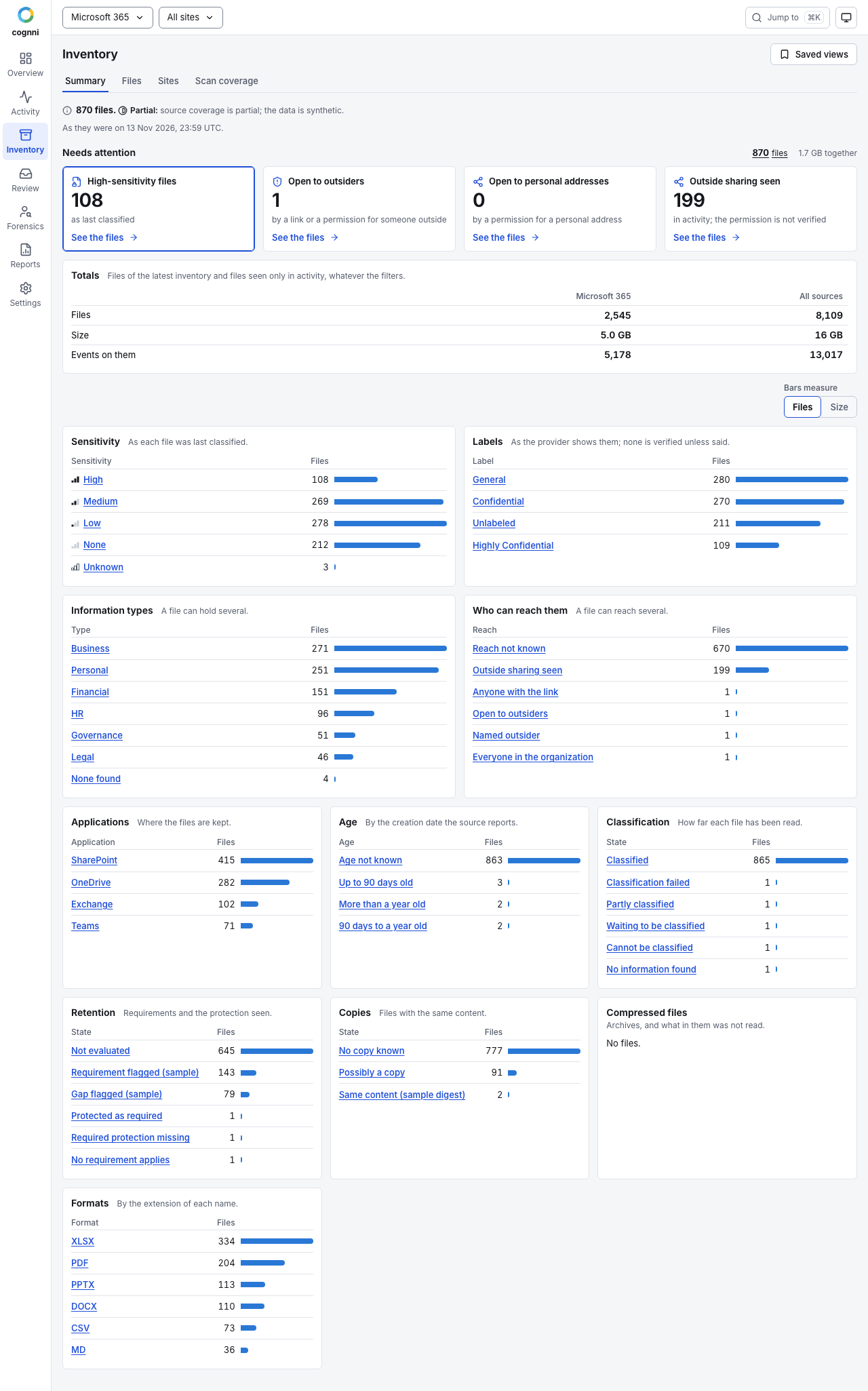
870 files, 2.0 GB, with 5,178 events on them. The banner gives the as-of time, here 13 Nov 2026, 23:59 UTC, and the coverage note. A second column compares this source with all sources.
- Needs attention. High-sensitivity files, Open to outsiders, Open to personal addresses, and Outside sharing seen. Each card opens the matching files.
- Bars measure. Files or Size, for the charts that follow.
- Sensitivity, labels, and information types. As each file was last classed, as the provider shows the label, and the types a file can hold several of.
- Who can reach them. Reach unknown, outside sharing seen, anyone with the link, open to outsiders, a named outsider, everyone in the organization, and the other reaches present.
- Applications, age, and classification. Where the files are kept, age by the creation date the source reports, and how far classification got for each file.
- Retention, copies, and compressed files. Requirements and the protection seen, files with the same content, and archives whose contents were read or were not.
- Formats. By the extension of the name: XLSX, PDF, PPTX, DOCX, CSV, MD, and the rest.
Files
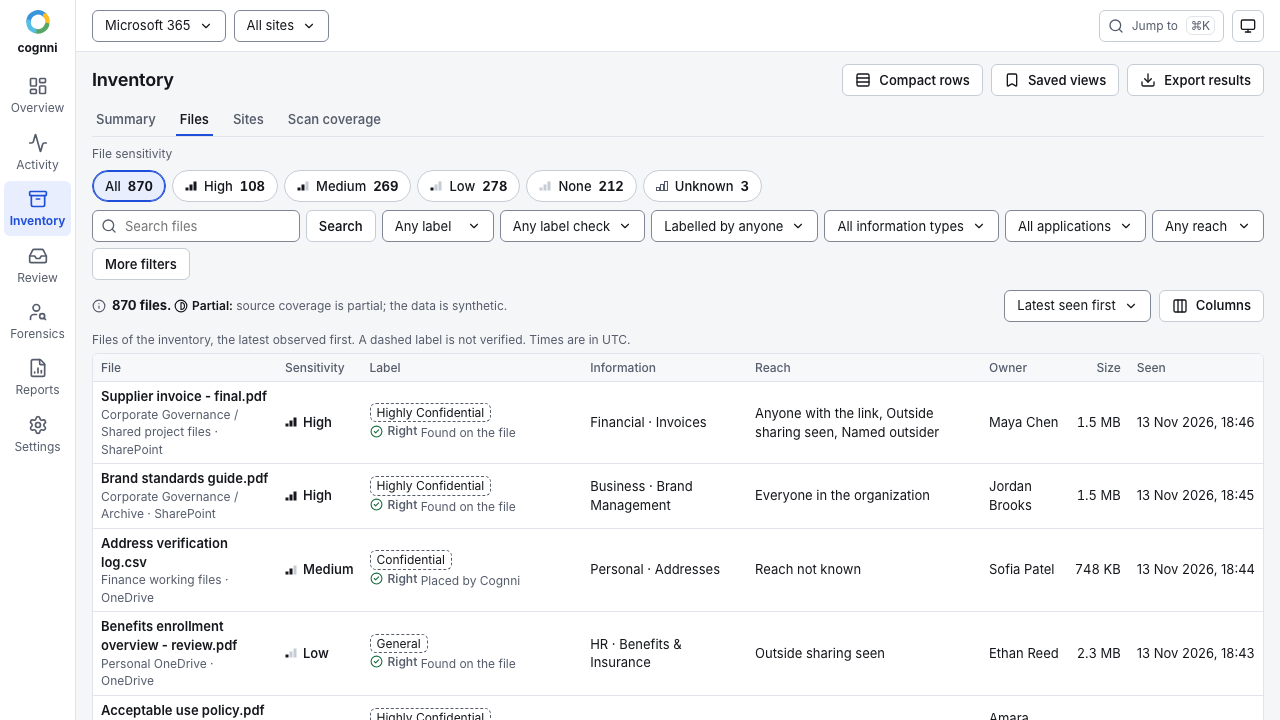
The files of the inventory, latest observed first. Chips are file sensitivity: All, High, Medium, Low, None, and Unknown. Filters add label, label check, who labelled the file, information types, applications, and reach. A row names the file, where it is kept, sensitivity, label and label check, information, who can reach it, the owner, the size, and when it was seen.
Sites
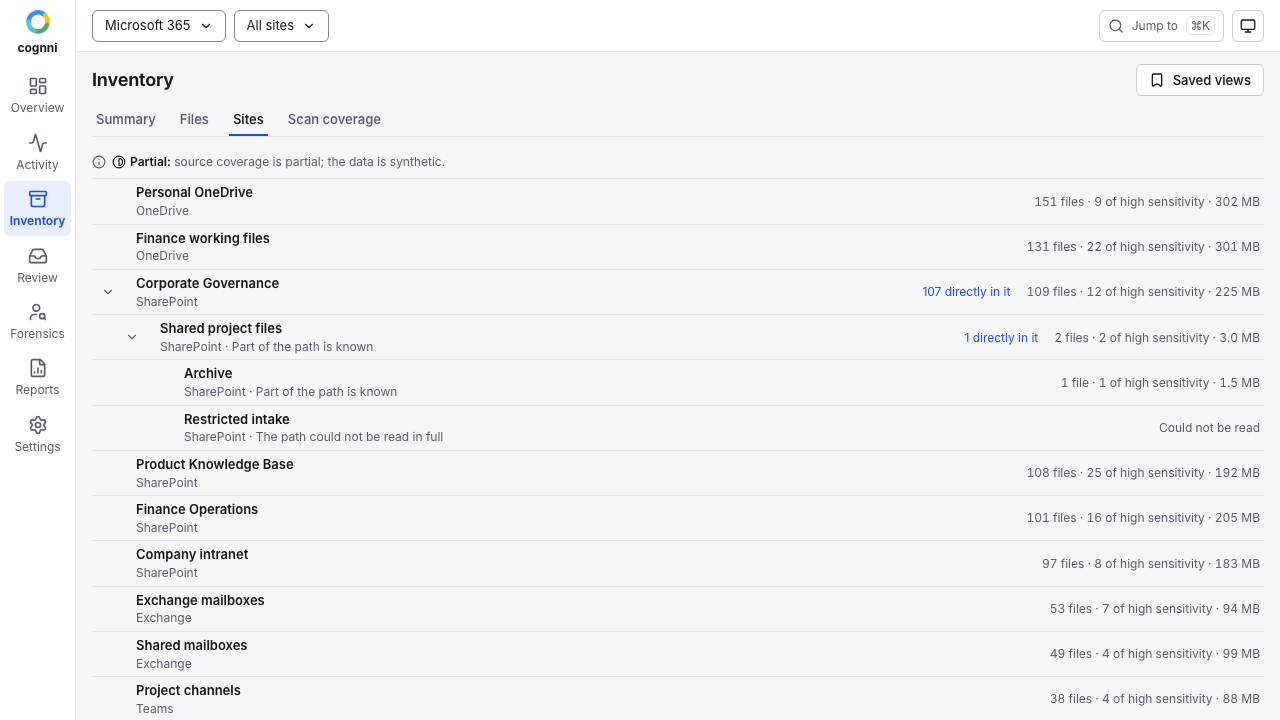
Locations in a tree. A site shows its files, how many are high sensitivity, and the size. Opening a branch shows what is directly in it and what sits further down. Where the path is only partly known, or could not be read, the row says so. Choosing a site in the scope bar narrows the summary, the files, and this tree together.
Scan coverage
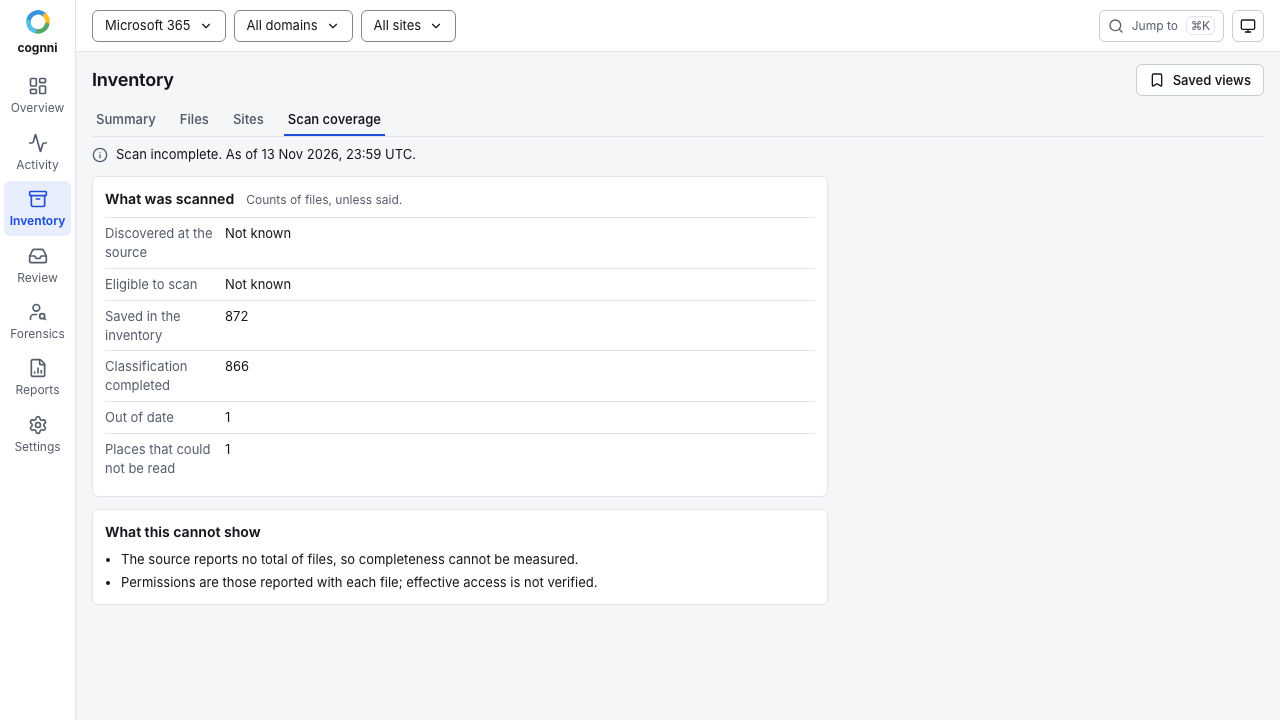
How complete the scan of the source is. The notice names the state and the as-of time. What was scanned counts files discovered, eligible, saved in the inventory, classification completed, out of date, and places that could not be read. What this cannot show states the limits, such as a source that reports no total, or permissions that are reported but not verified as effective access. A source that offers no inventory says so, and counts files other evidence only referred to.
A file
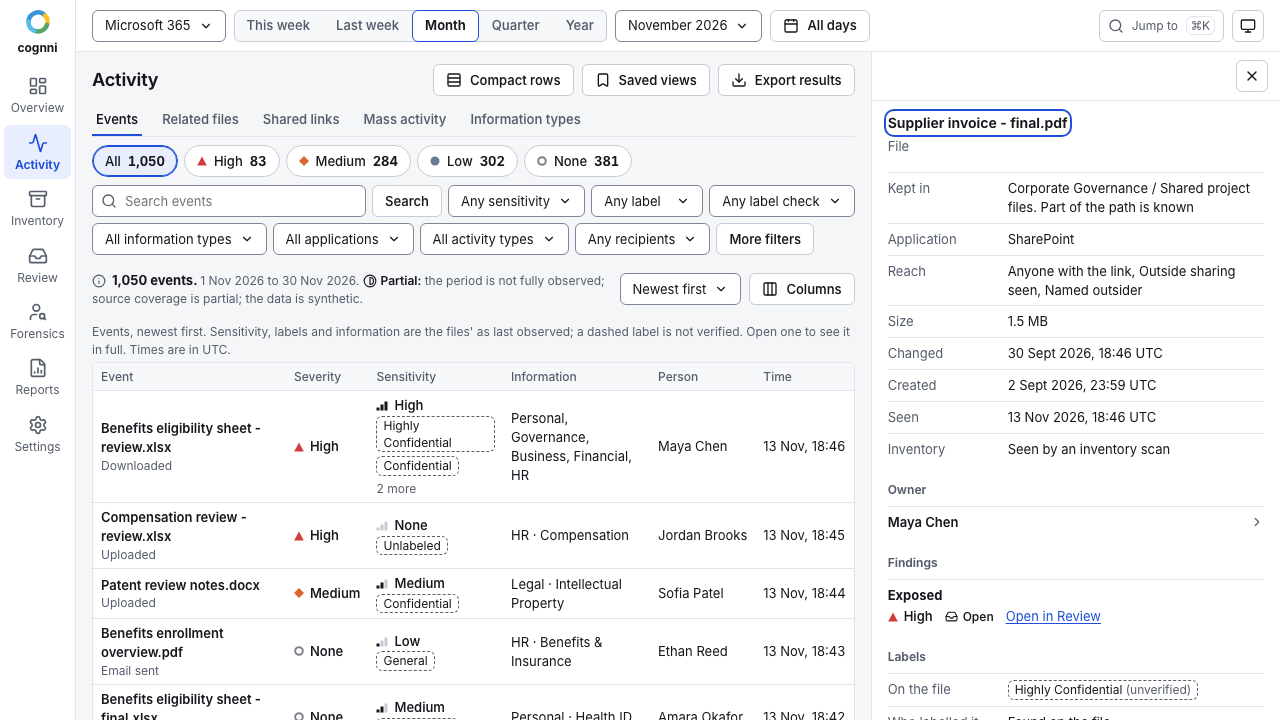
The file panel is the same wherever you open it. This one is Supplier invoice - final.pdf, kept in Corporate Governance / Shared project files on SharePoint. It shows reach, size, when it changed, when it was created, when it was seen, that an inventory scan saw it, the owner, findings with Open in Review, and the labels on the file, including which are unverified.
05
Review
Review is the queue of findings for the scope, and the cases that grow out of them. Findings come from Activity or from Inventory, so the scope bar offers both. The picture is Activity, Microsoft 365, November 2026.
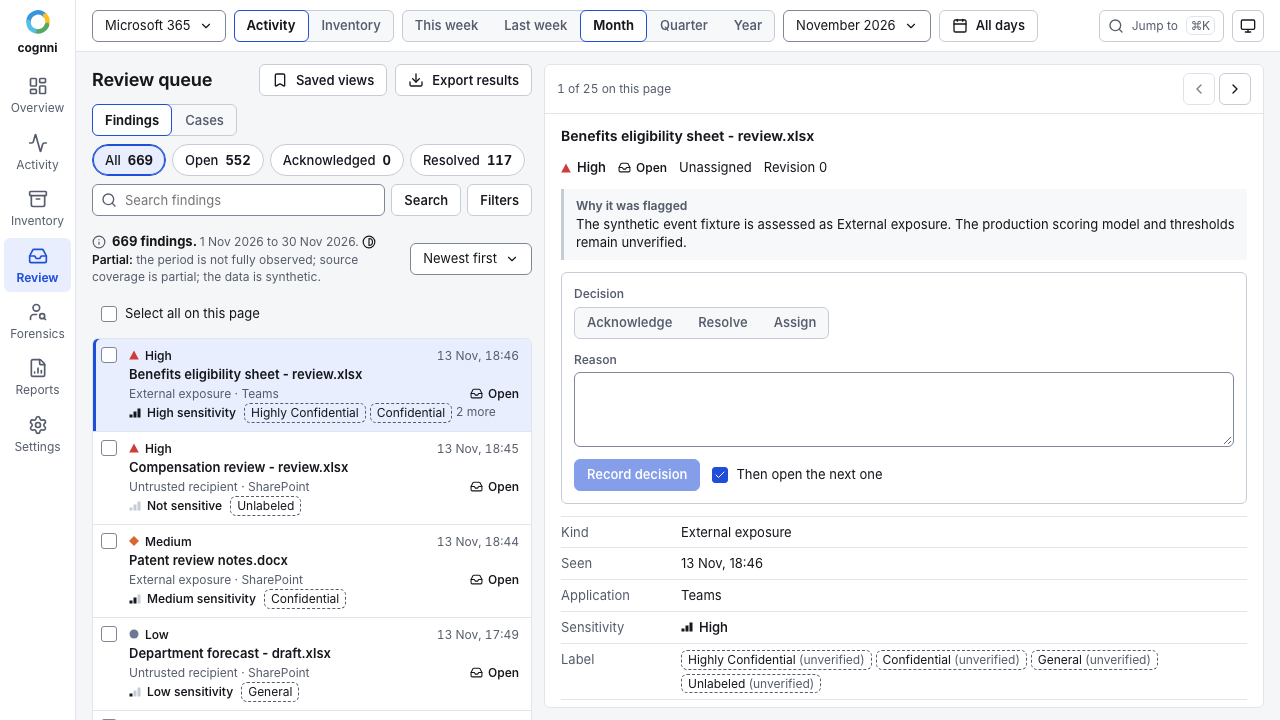
669 findings: 552 open, none acknowledged, 117 resolved. The list is the queue. The panel is the one you are deciding. Tick findings, or select the page, to acknowledge them together or to prepare an action.
- The queue. Search, Filters, and chips for All, Open, Acknowledged, and Resolved. A card shows severity, the file, why it was raised, the app, sensitivity, labels, state, and time.
- Why it was flagged. The panel states the reason this finding was opened.
- Decision. Acknowledge, Resolve, or Assign. Reason is yours to write. Record decision saves it. Then open the next one walks the queue.
- The facts beside the decision. Kind, when it was seen, application, sensitivity, and labels, marked unverified where they are.
- Keys. A acknowledges, R resolves, and Ctrl or ⌘ Enter records, along with the usual J, K, Enter, and /.
Cases
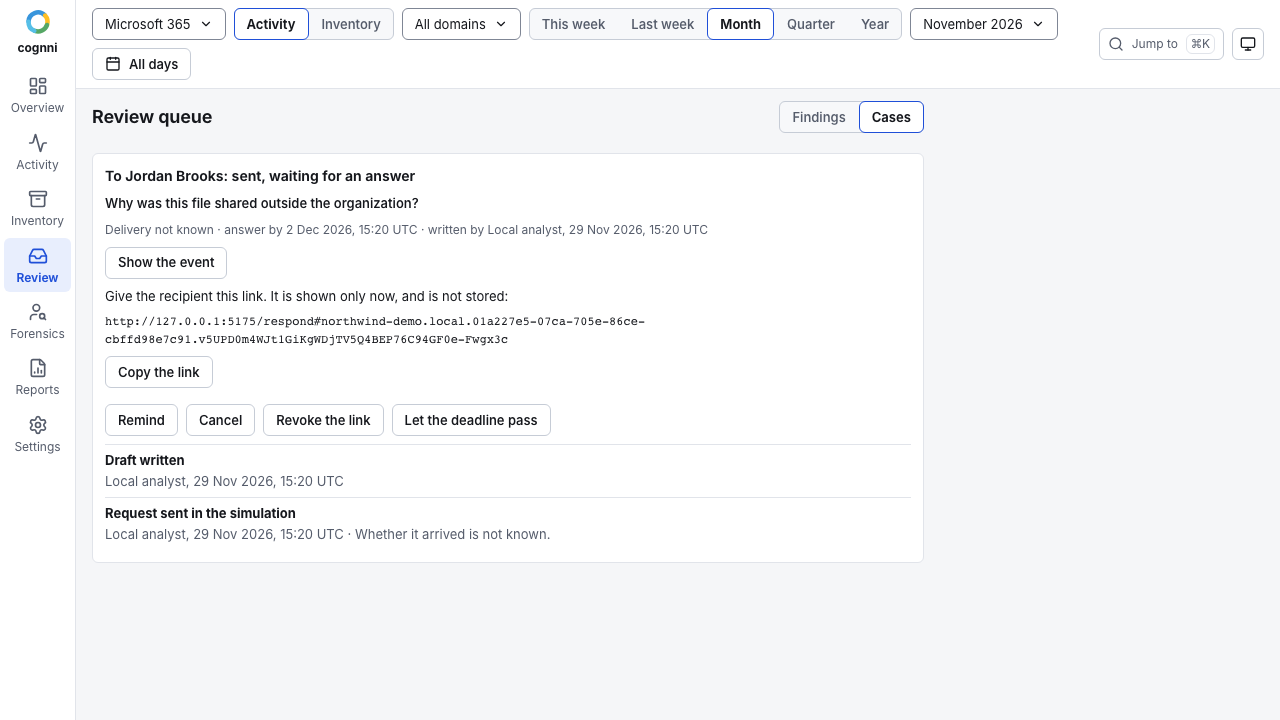
Questions put to people about findings and events. A case is drafted from Ask for justification, then sent as a link that only the recipient holds. The answer comes back through that link. The words of the question come from Messages in Settings, and can be changed before it is sent.
- The case. Who it is to, the question, the deadline, who started it, and Show the event.
- The link. Shown only when you send, and not stored. Copy the link to give to the recipient.
- While waiting. Remind, Cancel, Revoke the link, or Let the deadline pass.
- The timeline. Draft written, request sent, opened by the recipient, and the answer when it arrives.
06
Forensics
Forensics is a person, a relationship, a personal address, or a trust setting, inside the same scope as the rest of the console. The tabs are People, Relationships, Personal addresses, and Trust. A dossier can be of Activity or of Inventory.
People
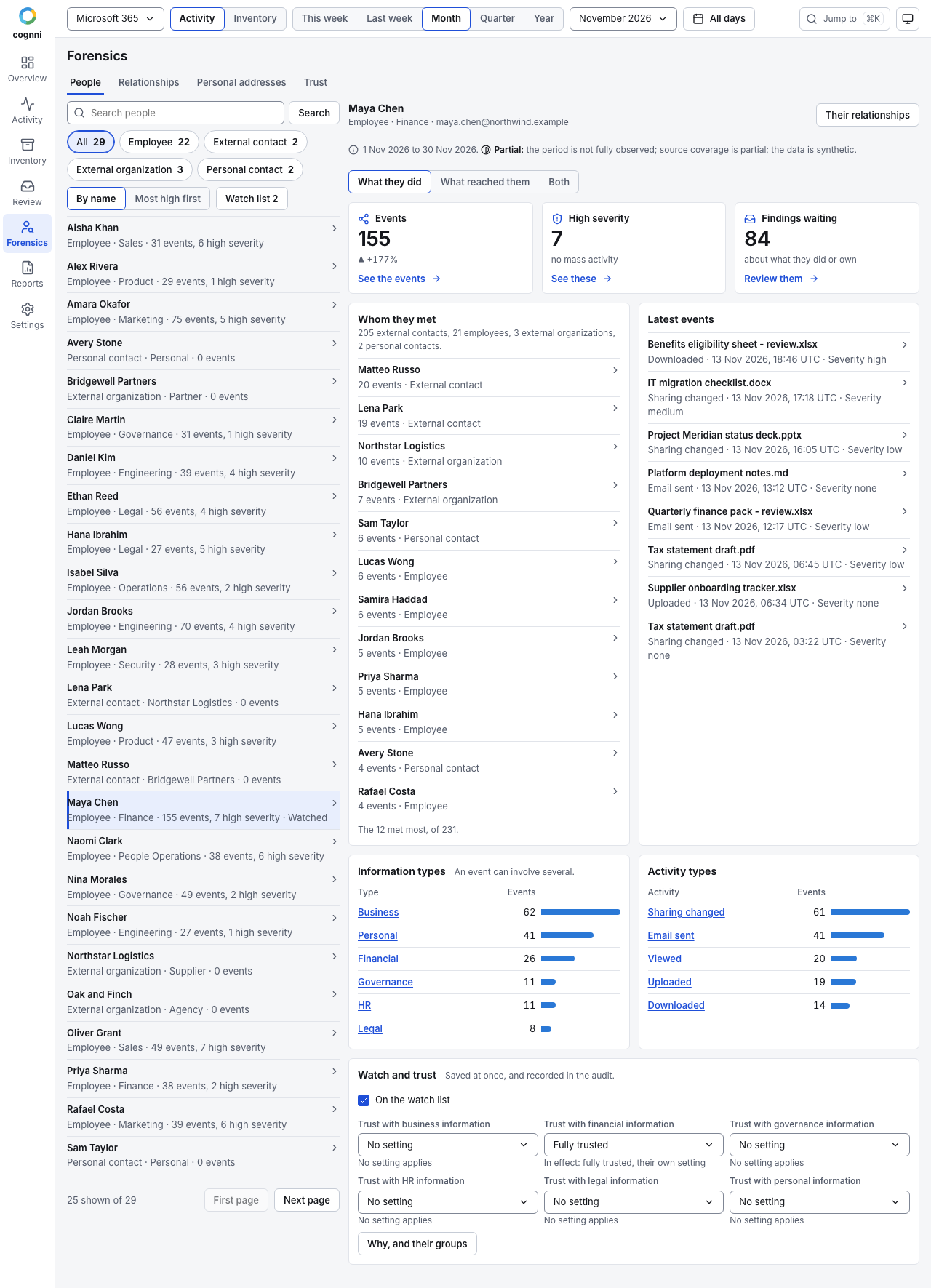
Maya Chen, an employee in Finance, is on the watch list. The list on the left is everyone in the scope: employees, external contacts, external organizations, and personal contacts, with their event counts. Sort by name, by most high-severity first, or by the watch list.
- Her figures. Events and the change, high-severity events, and findings waiting about what she did or owns. Their relationships opens the links she is part of.
- Whom they met, and Latest events. The people and organizations at the other end, and the recent files, each opening the event.
- Information types and Activity types. The same breakdowns as Overview, for this person.
- Watch and trust. The watch list is a switch. Trust is set per information type: business, financial, governance, HR, legal, and personal. A value shows what is in effect and whether it is their own setting. Why, and their groups explains where a setting came from.
Relationships
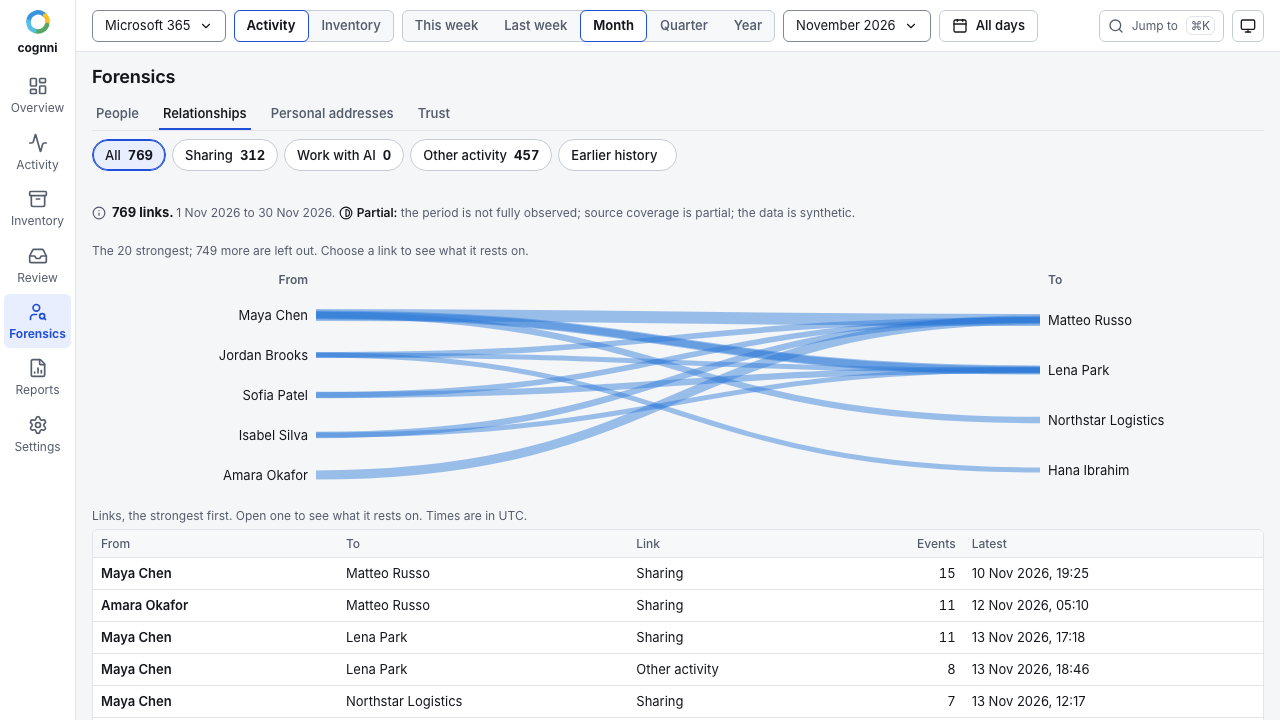
769 links in the month. The drawing shows the 20 strongest and says how many are left out. Chips split them into All, Sharing, Work with AI, Other activity, and Earlier history. The table under the drawing is the same links, strongest first: from, to, the kind of link, the events, and the latest time. Open a link to see what it rests on.
Personal addresses
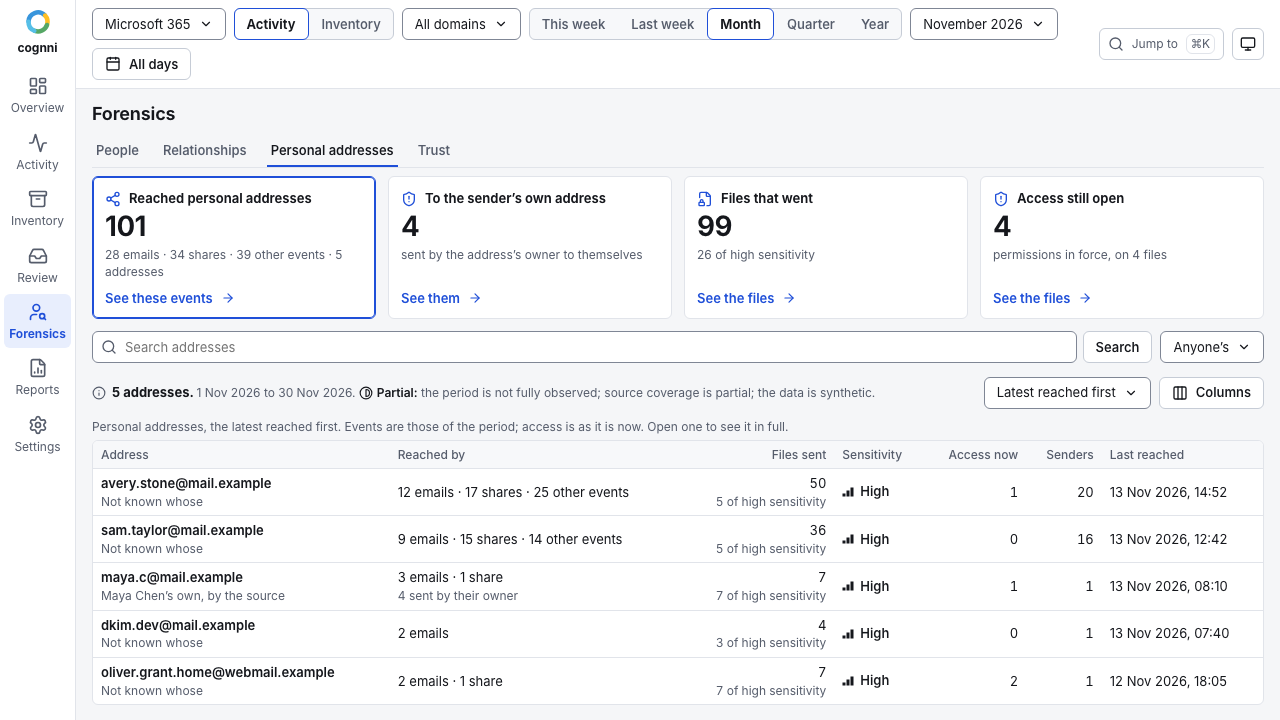
What reached personal addresses in the period, what those addresses can still open, and whose they are. Figures open the matching events or files: Reached personal addresses, To the sender’s own address, Files that went, and Access still open.
- The row. Address and whose it is, reached by, files sent, sensitivity, access now, senders, and last reached.
- Anyone’s or one’s own. The filter beside Search narrows whose addresses show.
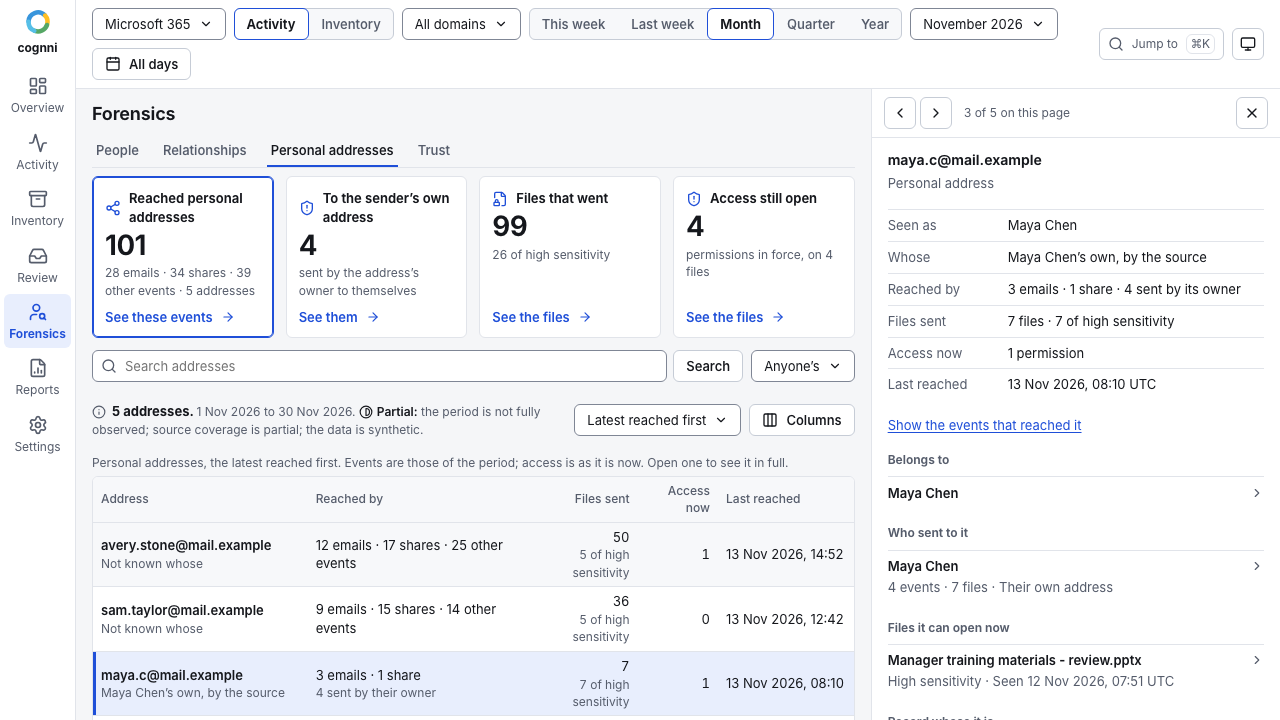
Opening an address shows whose it is, how it was reached, who sent to it, the files it can still open, and Show the events that reached it. An analyst can record an owner when the source does not say.
Trust
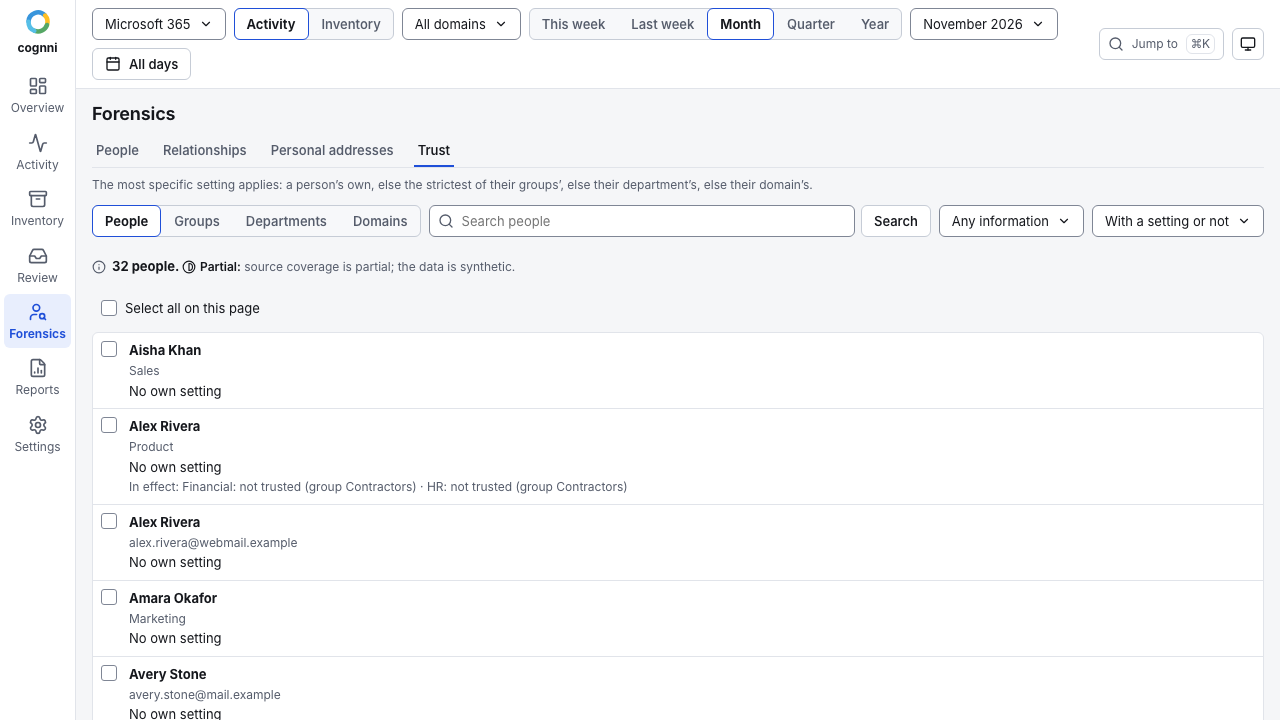
People, groups, departments, and domains, each with its settings. The most specific setting applies: a person’s own, else the strictest of their groups’, else their department’s, else their domain’s. Tick several and Set trust… to give them the same setting. Open one to see why, change it, and who is in a group.
07
Reports
Reports has three tabs: Reports, Exports, and Audit log. A report follows the scope. Exports and the audit log are yours across sources, so the scope bar steps back on those two tabs.
Reports
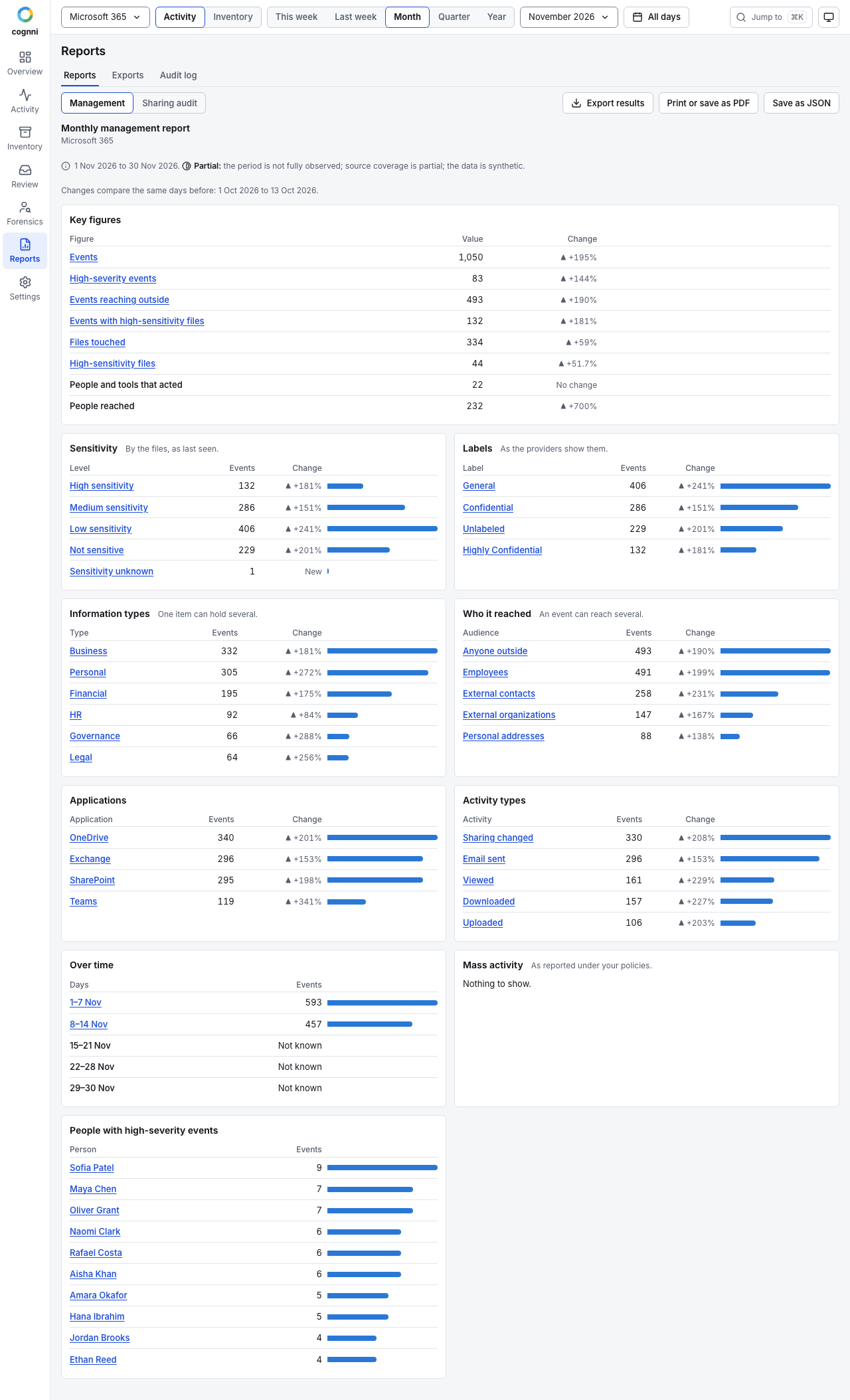
The monthly management report for Microsoft 365, 1 Nov 2026 to 30 Nov 2026. With Activity selected the choices are Management and Sharing audit. Management follows the period, so a week, a month, a quarter, or a year changes which report you are reading. With Inventory selected the choices are Inventory, Labeling, and Sharing audit.
- On the page. Key figures with their change, then the same families as Overview: sensitivity, labels, information types, who it reached, applications, activity types, the weeks, mass activity, and people with the most high-severity events. A figure opens the list it was counted from.
- Take it with you. Export results, Print or save as PDF, and Save as JSON. The JSON is the report as the console prepared it.
Sharing, inventory, and labeling reports
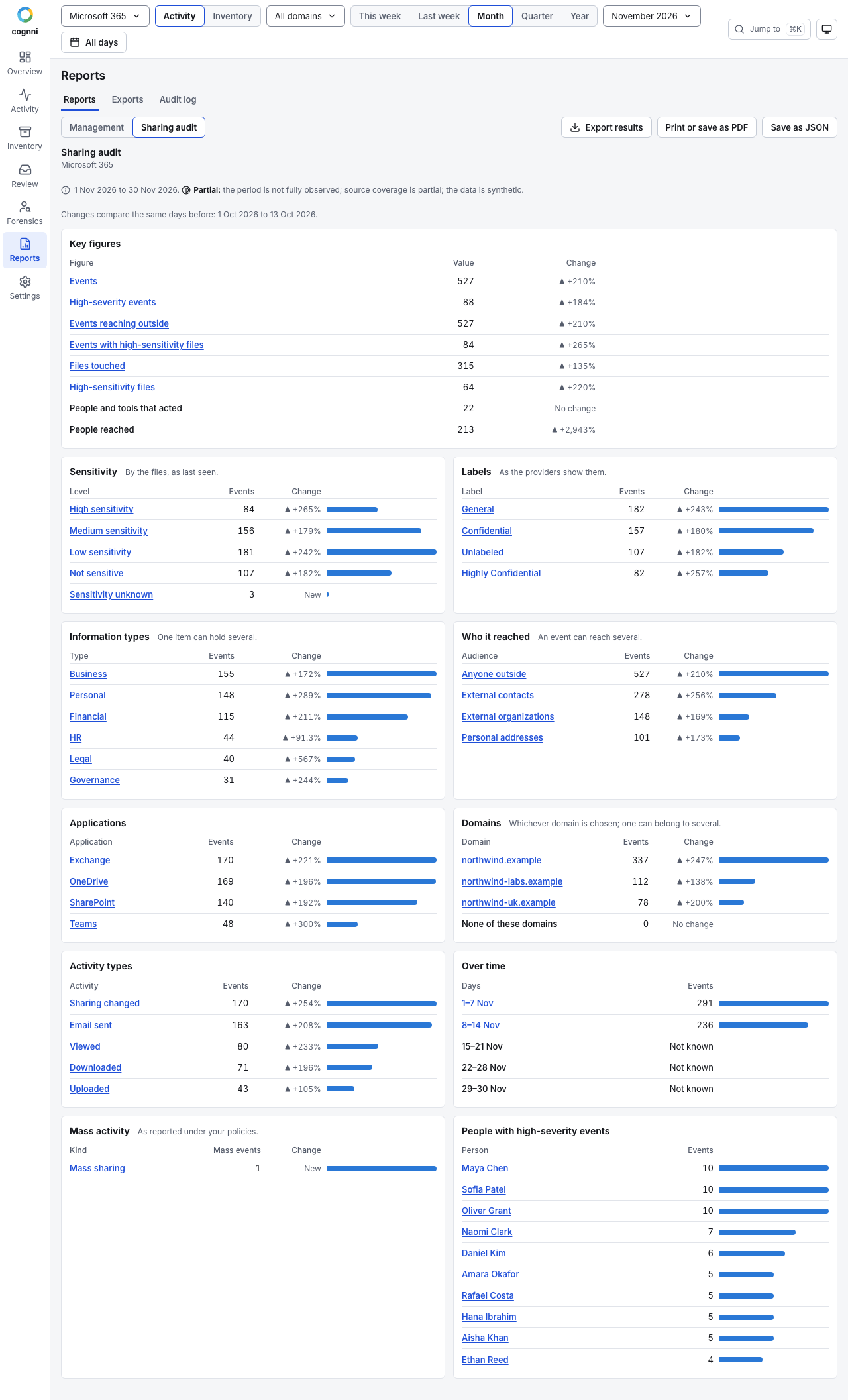
Who received what, for Activity or Inventory. Figures open the lists they were counted from. Export results, Print or save as PDF, and Save as JSON work as on the management report.
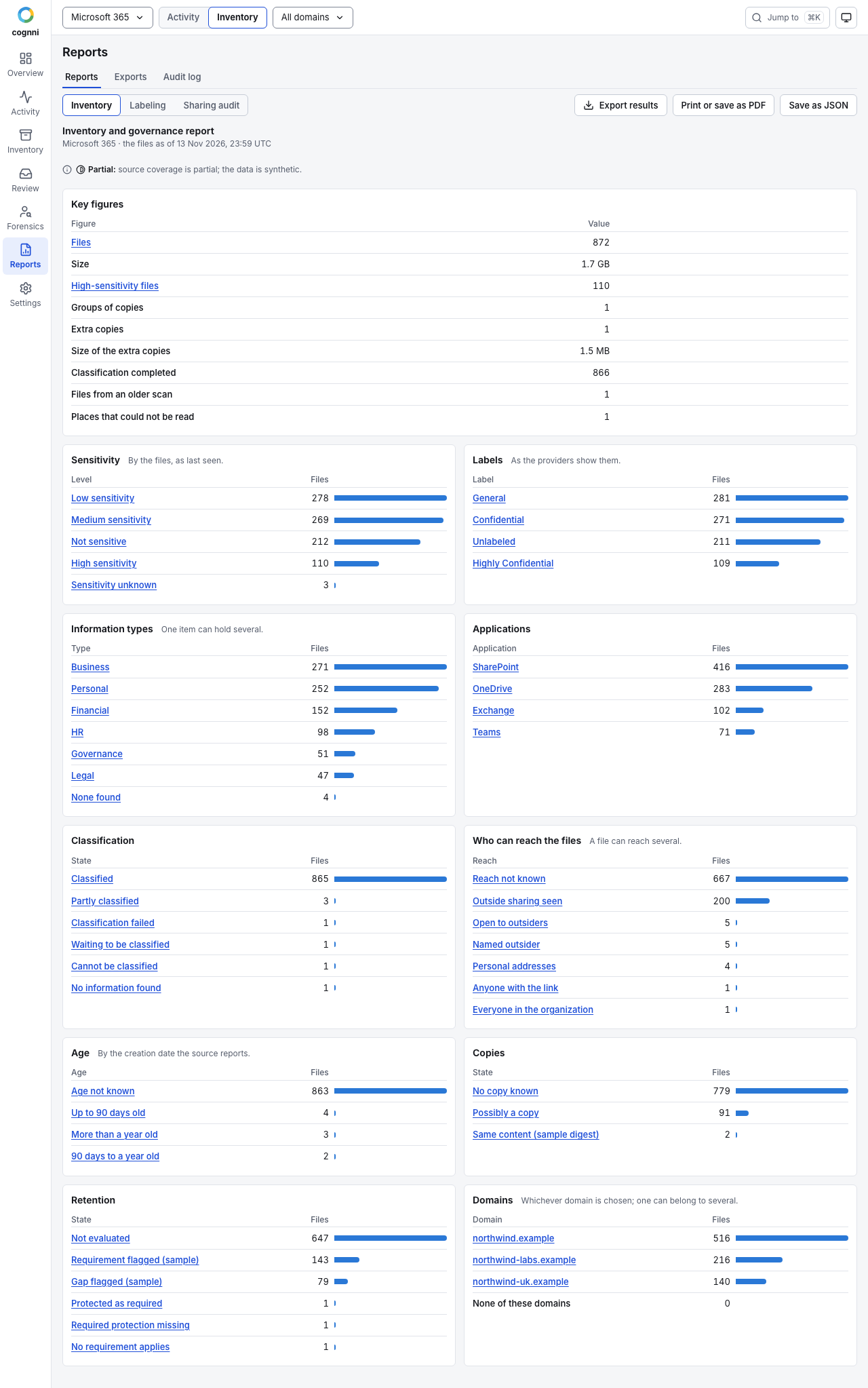
With Inventory selected: the current files, their sensitivity, labels, reach, applications, age, classification, retention, and the rest of the inventory figures, as a report you can take away.
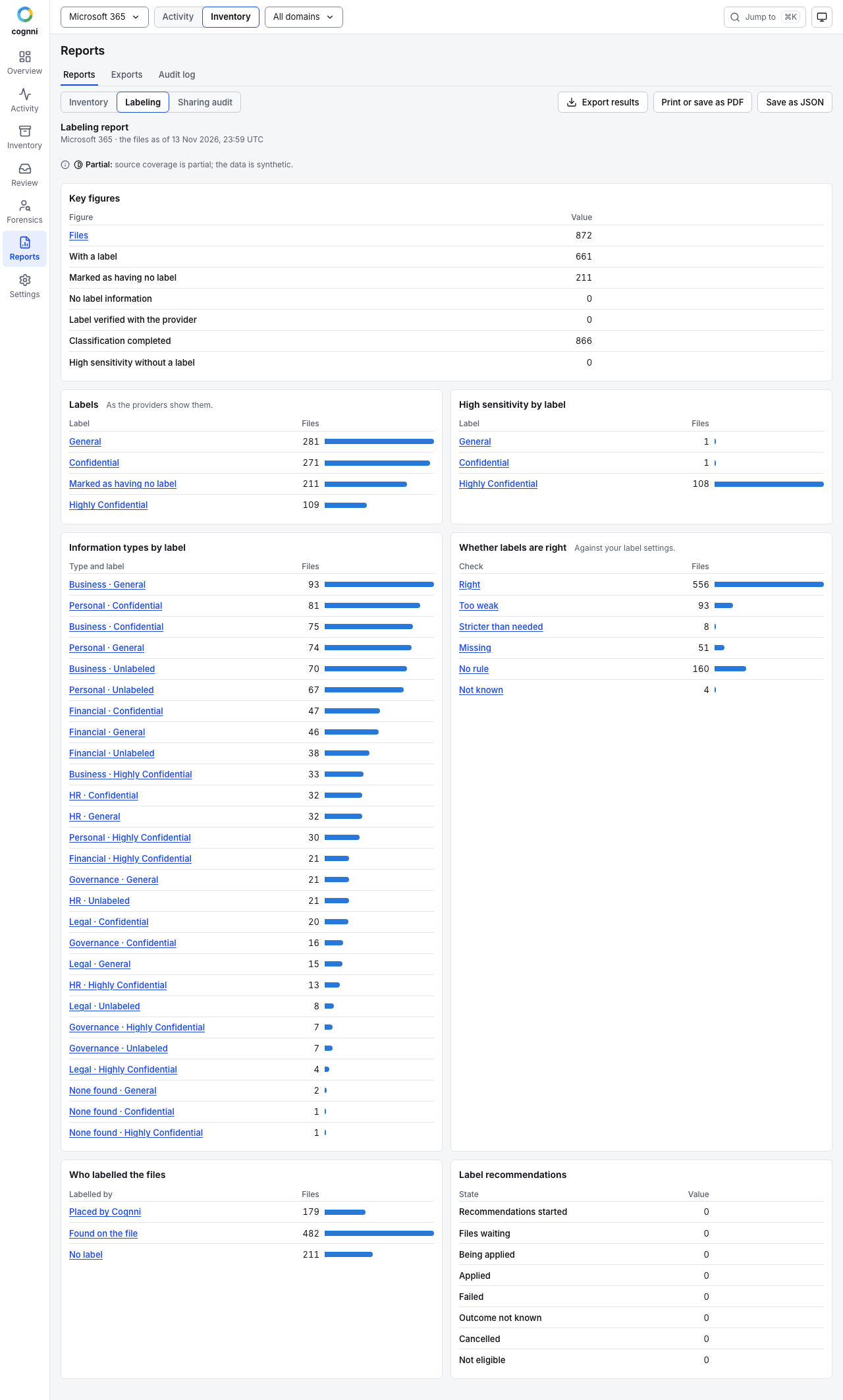
Also on Inventory: labels as the providers show them, whether they are right against your settings, who labelled the files, and the recommendations. A label opens the files under it.
Exports
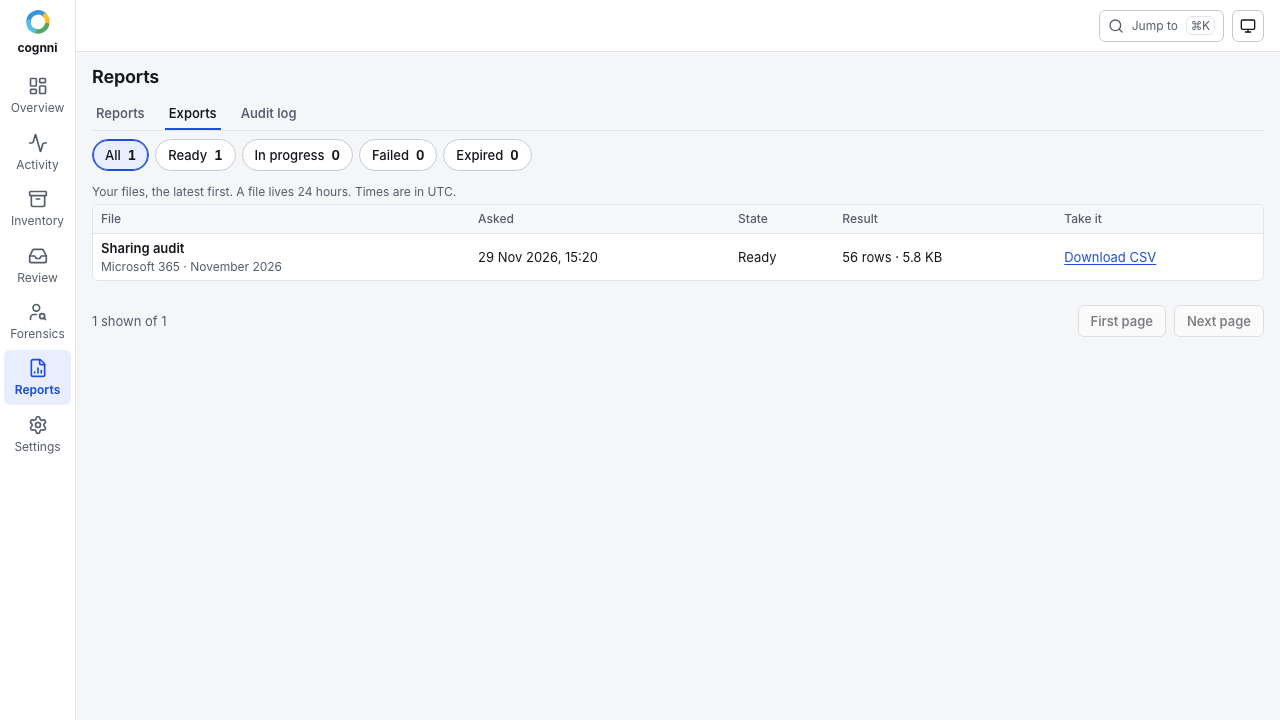
Your files, the latest first. A file lives 24 hours. Times are in UTC. Chips are All, Ready, In progress, Failed, and Expired. A ready row downloads as CSV, with its row count and size. A failed one can be tried again. The scope bar steps back on this tab.
Audit log
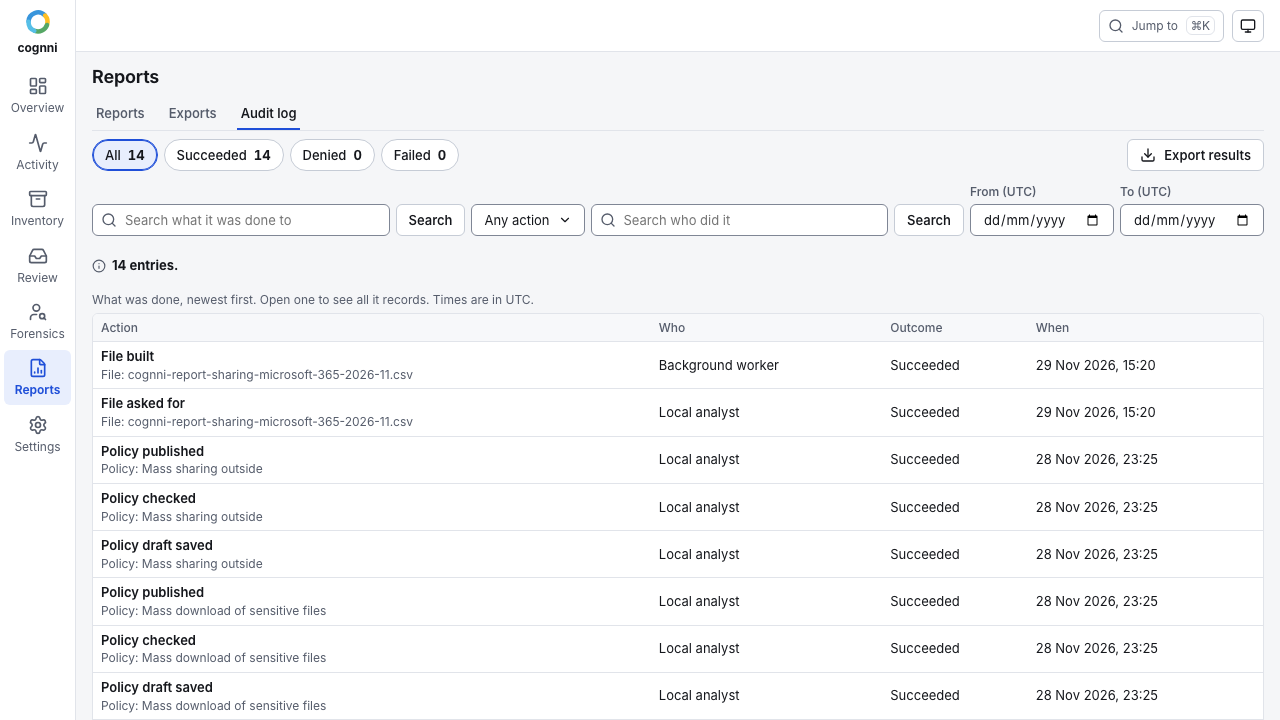
Who did what to which record, newest first. Outcome chips are All, Succeeded, Denied, and Failed. Columns are Action, Who, Outcome, and When. Filters narrow by what it was done to, the action, who did it, and dates. Open one entry for the detail. Export results takes the filtered log. In Preferences, the audit log stays on.
08
Settings
Settings is what an administrator configures, what was started from Review, and how complete the data is. The policy screens share one editor: change the draft, check it, publish it, and read the versions already published. The pictures are the demonstration workspace.
Mass activity
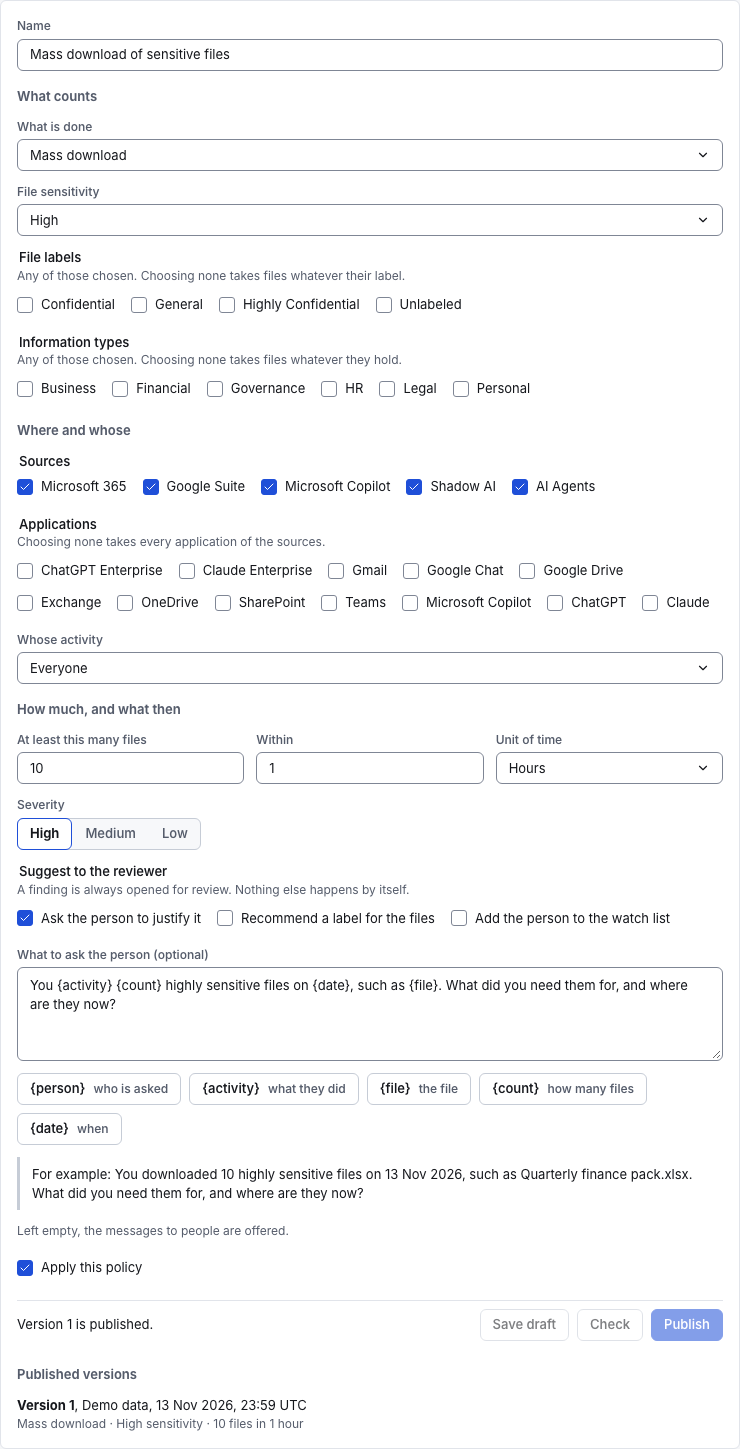
What counts as mass activity, and what a reviewer is asked to consider. The open policy is Mass download of sensitive files, version 1, published. It counts a mass download of high-sensitivity files, at least 10 within 1 hour, from the listed sources, for everyone’s activity, at high severity.
- What counts. The activity, file sensitivity, any chosen labels and information types, the sources and applications, and whose activity.
- How much, and what then. A threshold, a window, and a severity of High, Medium, or Low.
- Suggest to the reviewer. A finding is always opened for review. The policy can also suggest asking the person to justify it, recommending a label, or adding the person to the watch list. The question has places for the person, the activity, the file, the count, and the date, and shows an example filled in.
- Apply this policy. Save draft, Check, and Publish. Published versions stay listed under the editor.
Connections
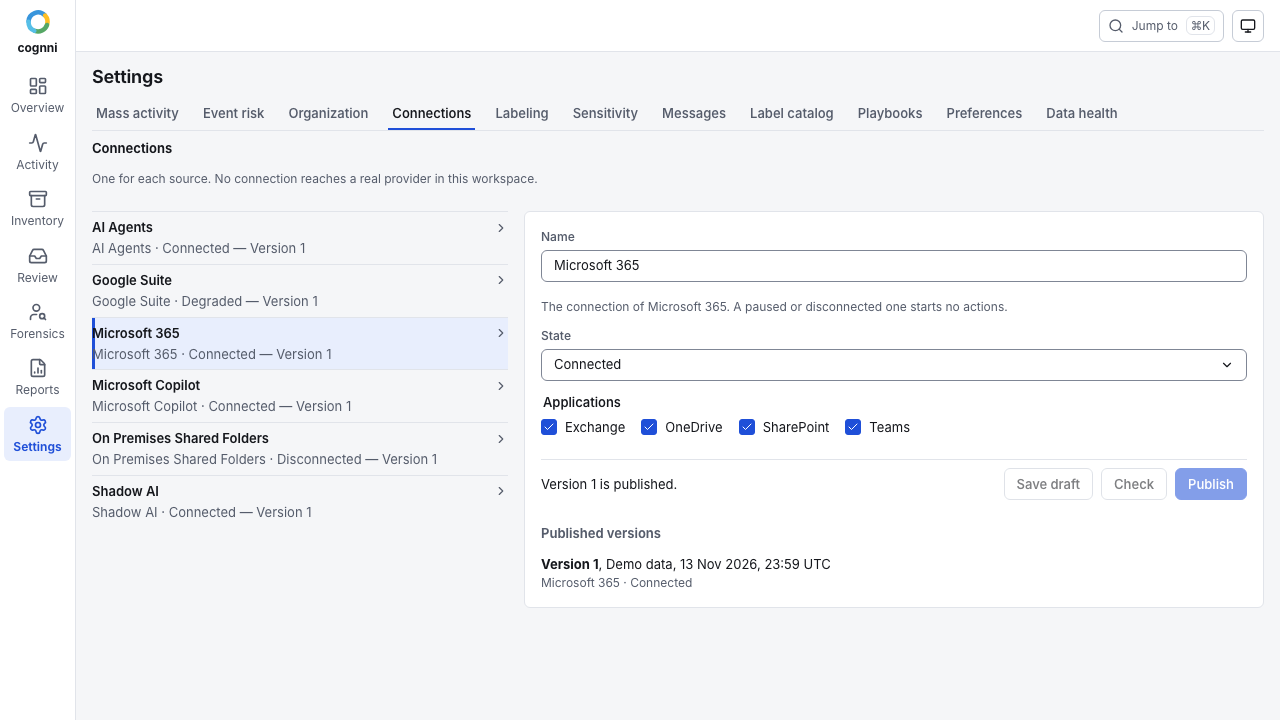
One connection for each source. Microsoft 365 is connected, version 1, with Exchange, OneDrive, SharePoint, and Teams counted. Beside it: AI Agents connected, Google Suite degraded, Microsoft Copilot connected, On Premises Shared Folders disconnected, and Shadow AI connected. State is Connected, Degraded, Paused, or Disconnected. A paused or disconnected connection starts no actions. The screen in this workspace says no connection reaches a real provider.
Data health
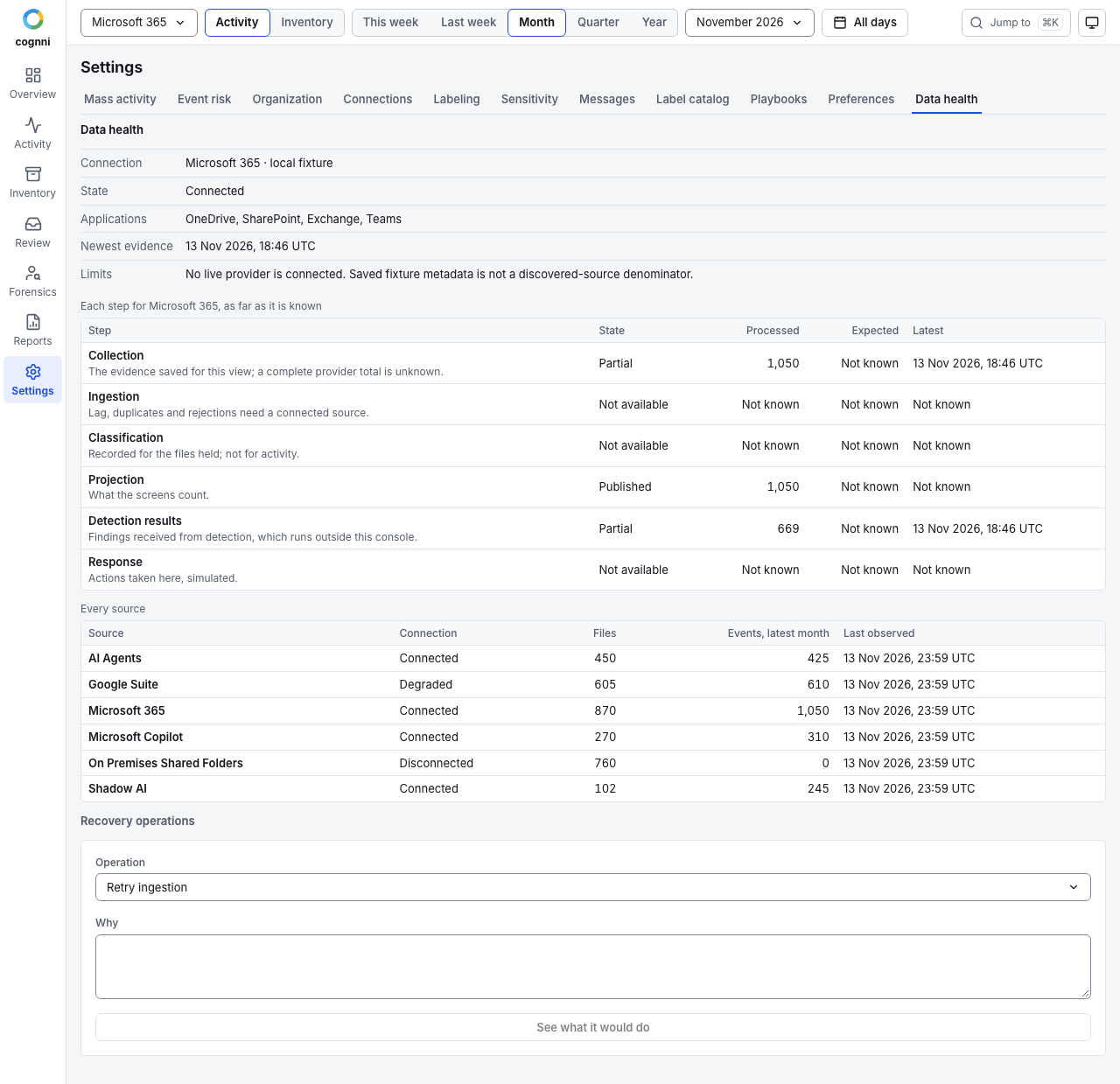
How complete the evidence is, for the source in the scope bar and then for every source. Microsoft 365 is connected, with OneDrive, SharePoint, Exchange, and Teams, and newest evidence at 13 Nov 2026, 18:46 UTC.
- Each step. Collection, Ingestion, Classification, Projection, Detection results, and Response, with state, what was processed, what was expected, and the latest time.
- Every source. Connection, files, events in the latest month, and when it was last observed.
- Recovery operations. Choose an operation, such as Retry ingestion, say why, and see what it would do before it starts.
Event risk
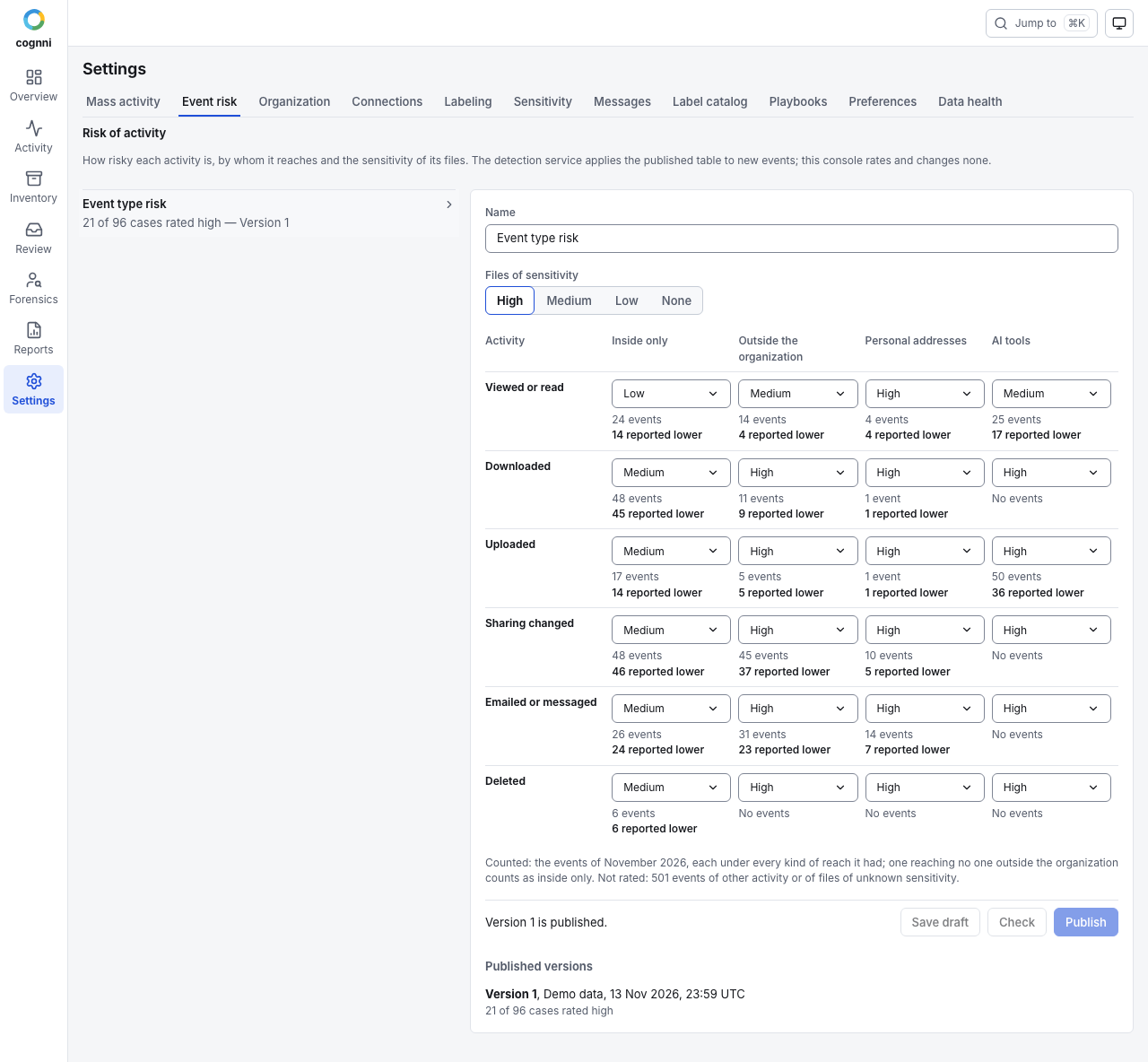
How risky each activity is, by whom it reaches and the sensitivity of its files. Choose Files of sensitivity High, Medium, Low, or None, then set each activity against Inside only, Outside the organization, Personal addresses, and AI tools. Beside each cell is how many events of the latest month would be affected. The detection service applies the published table to new events; this console rates and changes none. Save draft, Check, and Publish work as on mass activity.
Organization
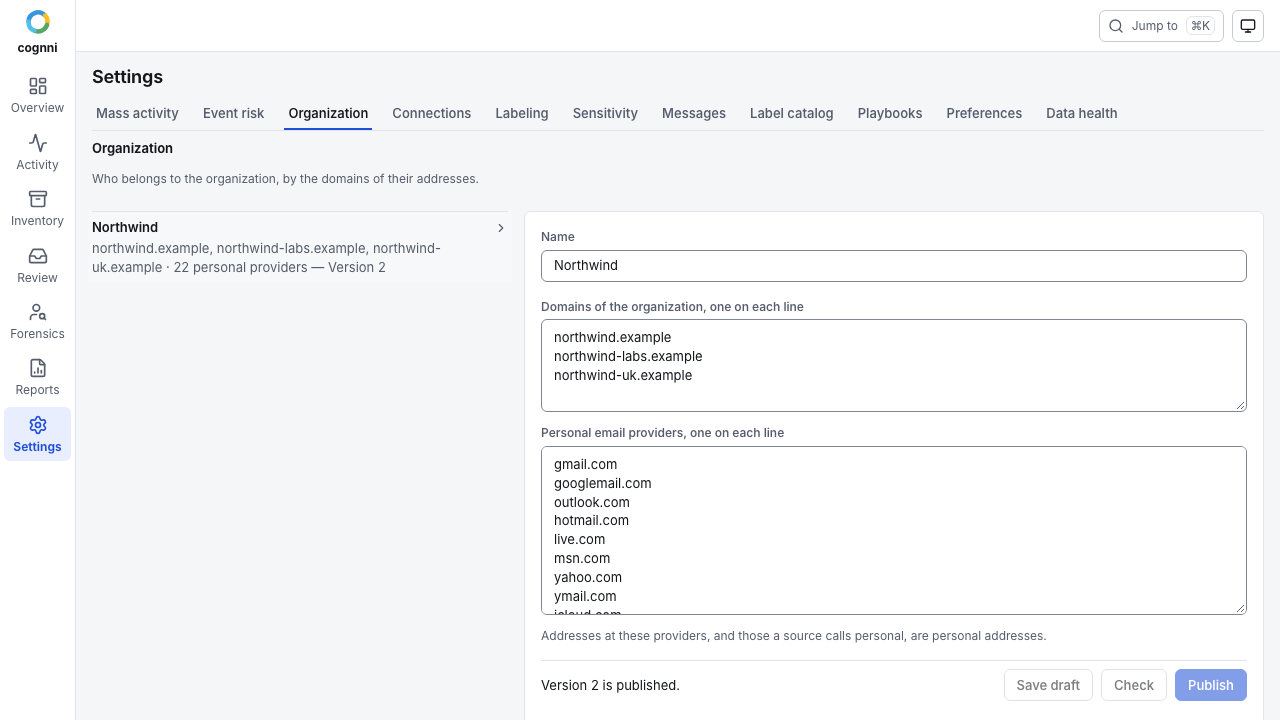
Who belongs, by the domains of their addresses, and which domains are personal-mail providers. One domain on each line. Open the organization to see or change it.
Labeling
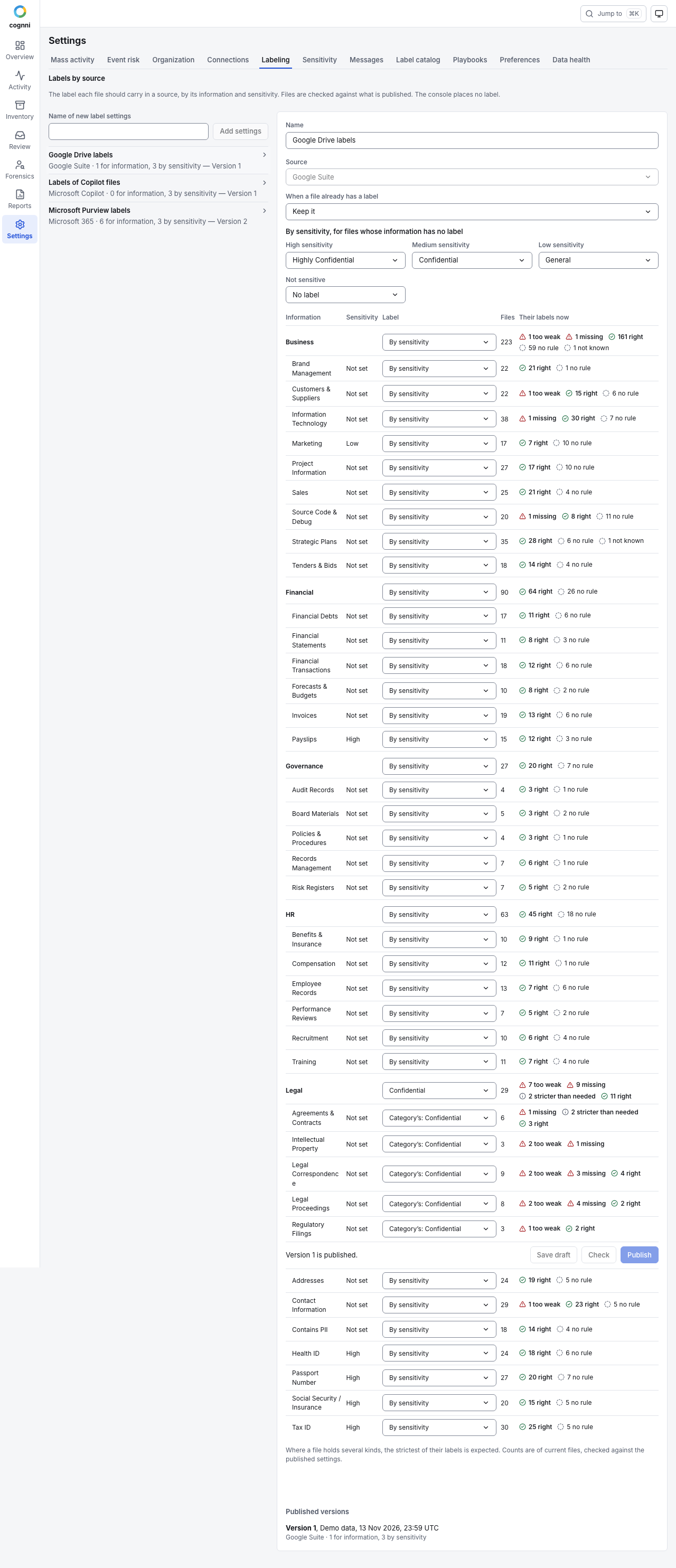
The label each file should carry in a source, by its information and sensitivity, and whether a label already on the file may be replaced. Files are checked against what is published. The Labeling tab of Overview is that check. The console places no label itself.
Sensitivity
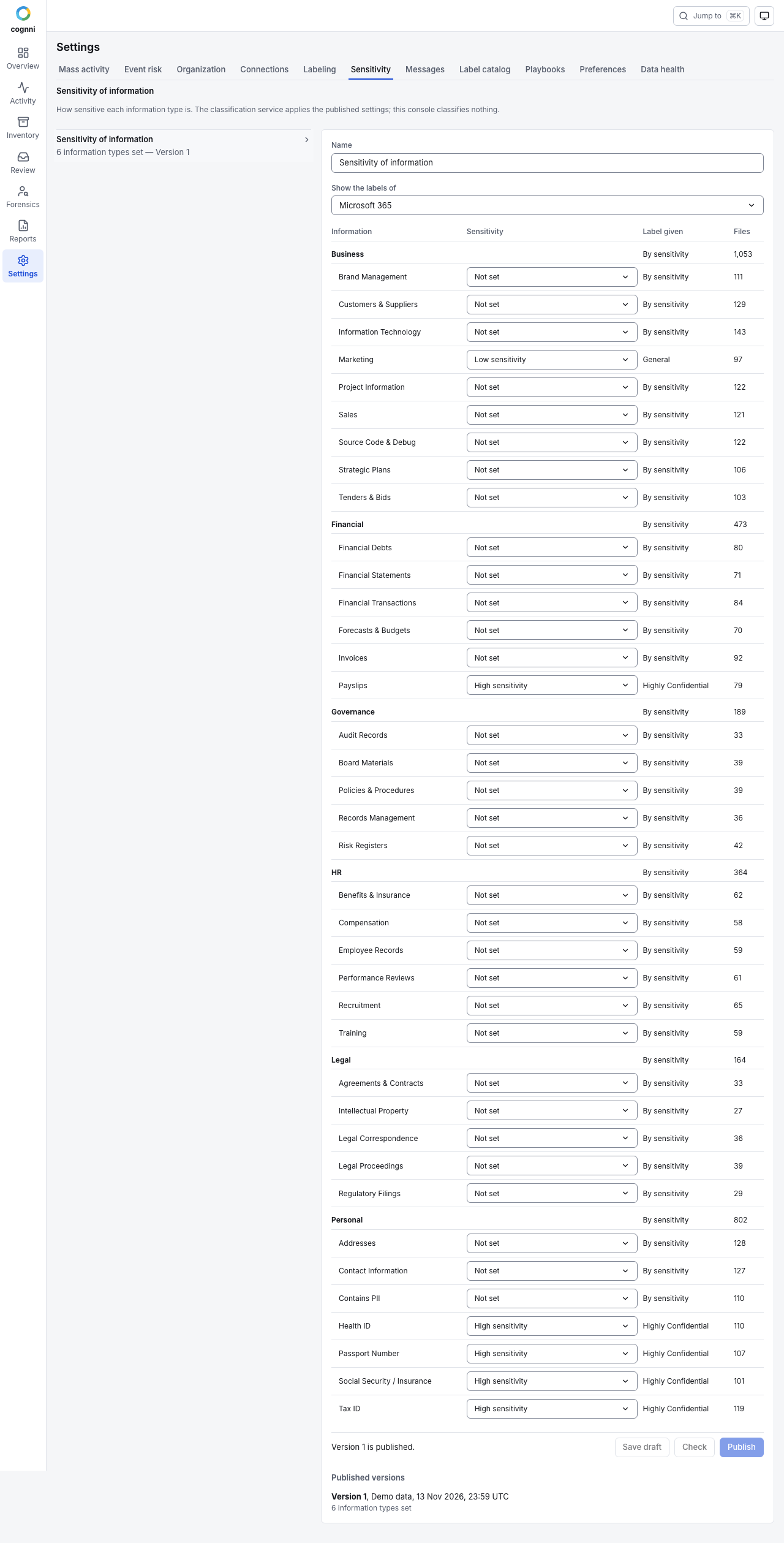
How sensitive each information type is, beside the label a source gives it and the files that hold it. The classification service applies what is published; this console classifies nothing.
Messages
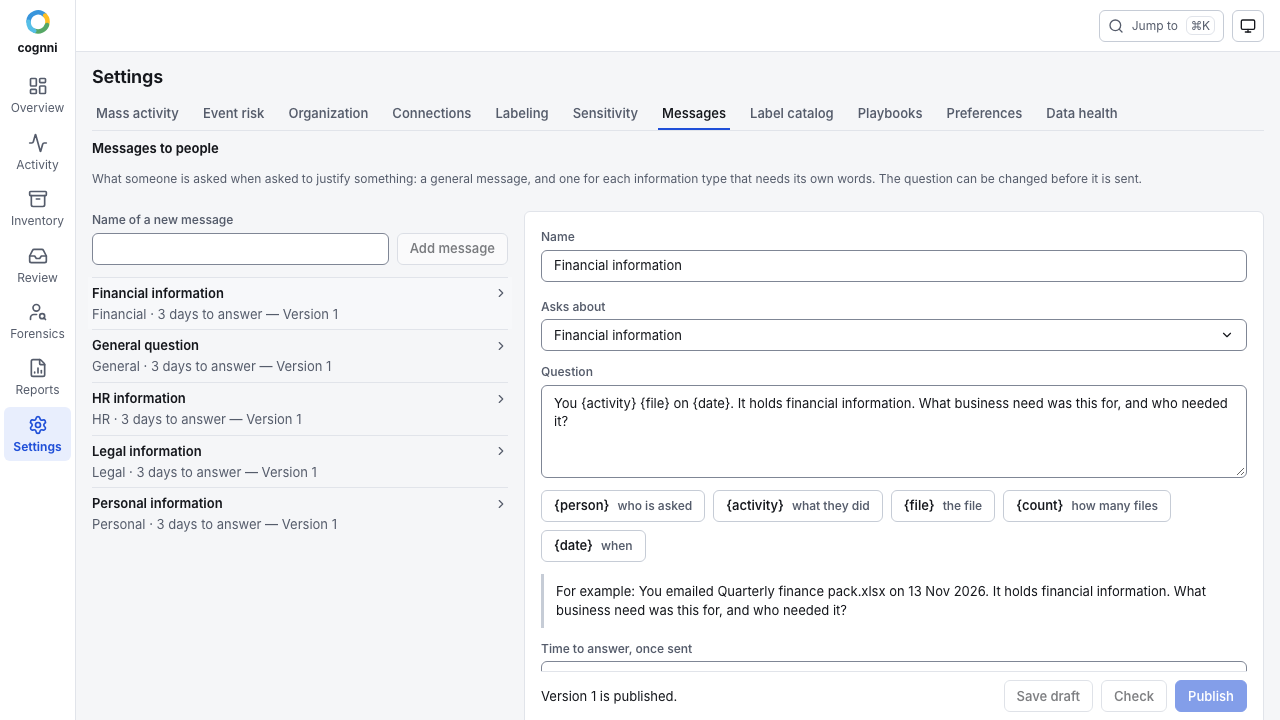
What someone is asked when asked to justify something: a general message, and one for each information type that needs its own words, with the days allowed to answer. The question can still be changed before it is sent from Ask for justification.
Label catalog
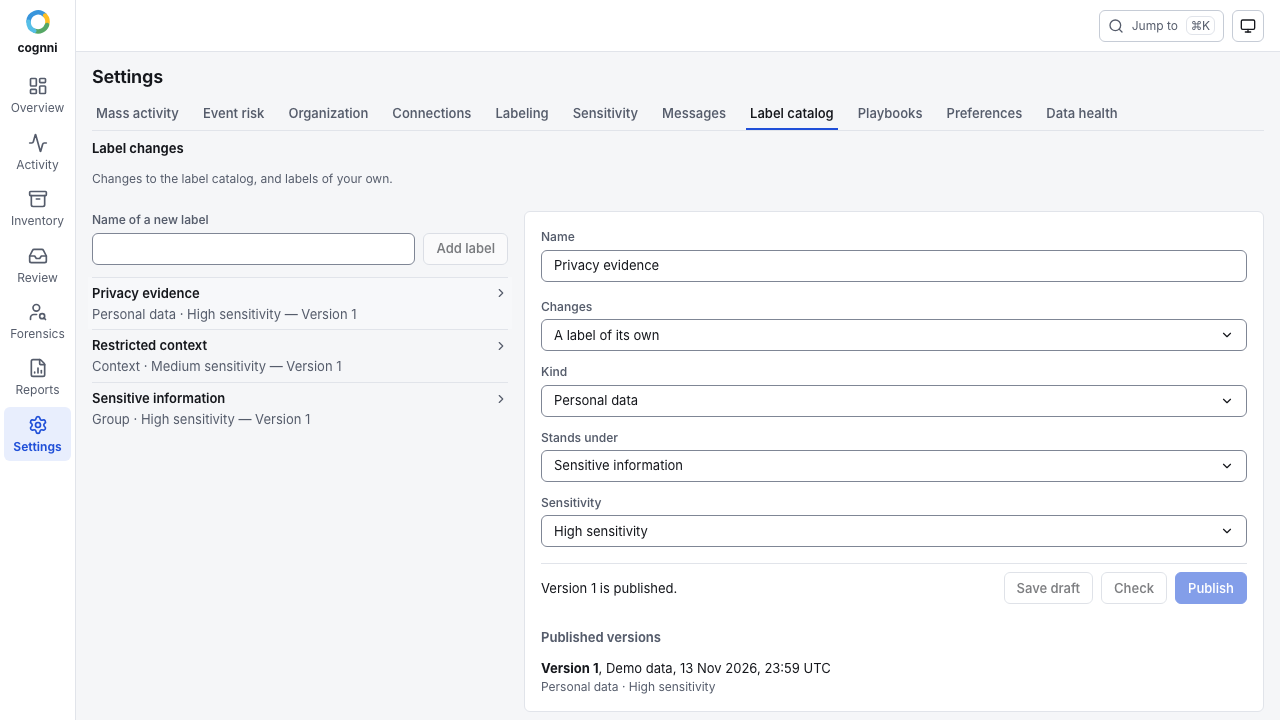
A change to a catalog label, or a label of your own: its name, kind, place, and level.
Playbooks
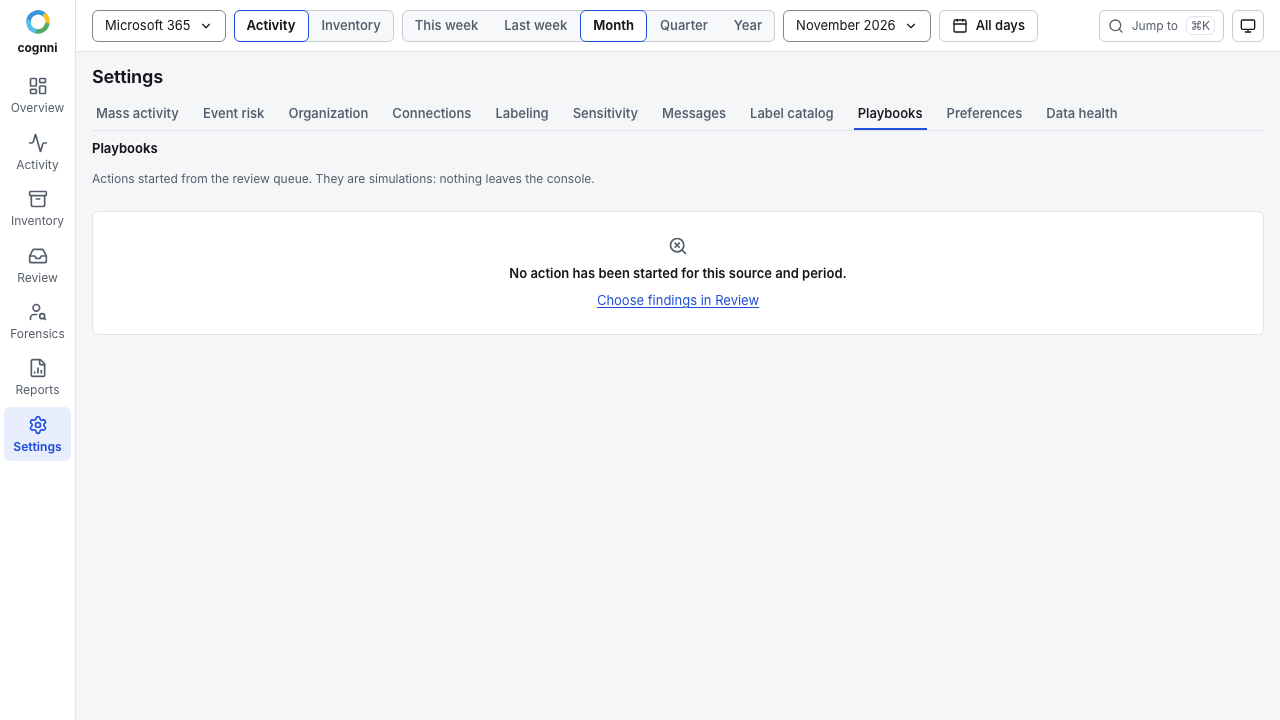
Actions started from the review queue, followed one target at a time. They are simulations: nothing leaves the console. Prepare an action… in Review starts a run. When none have been started for the source and period, the page links to Review to choose findings.
Preferences
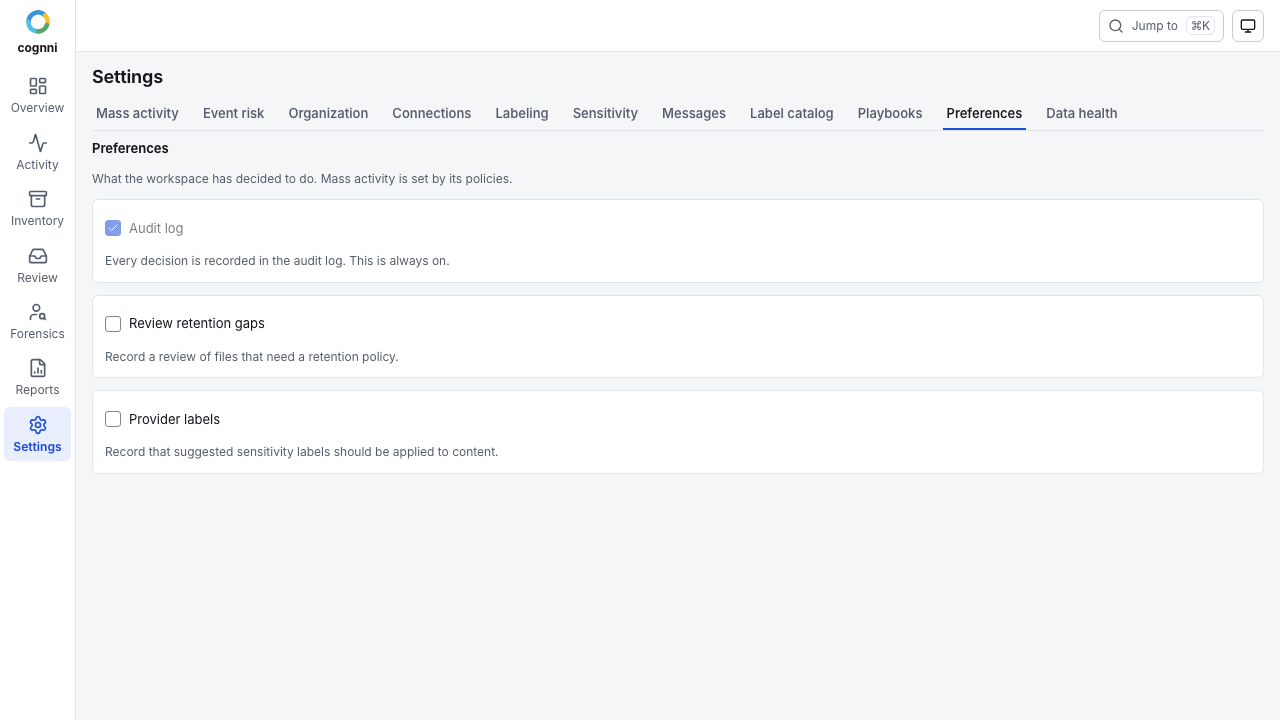
What the workspace has decided to do. The audit log stays on: every decision is recorded. Review retention gaps records a review of files that need a retention policy. Provider labels records that suggested sensitivity labels should be applied. Mass activity is set by its policies. Only an administrator can change a preference.
09
A question for you
The recipient’s page stands alone. There is no console around it. The person opens the link from Cases, reads the question, and sends an answer. Opening the page and the answer are recorded.
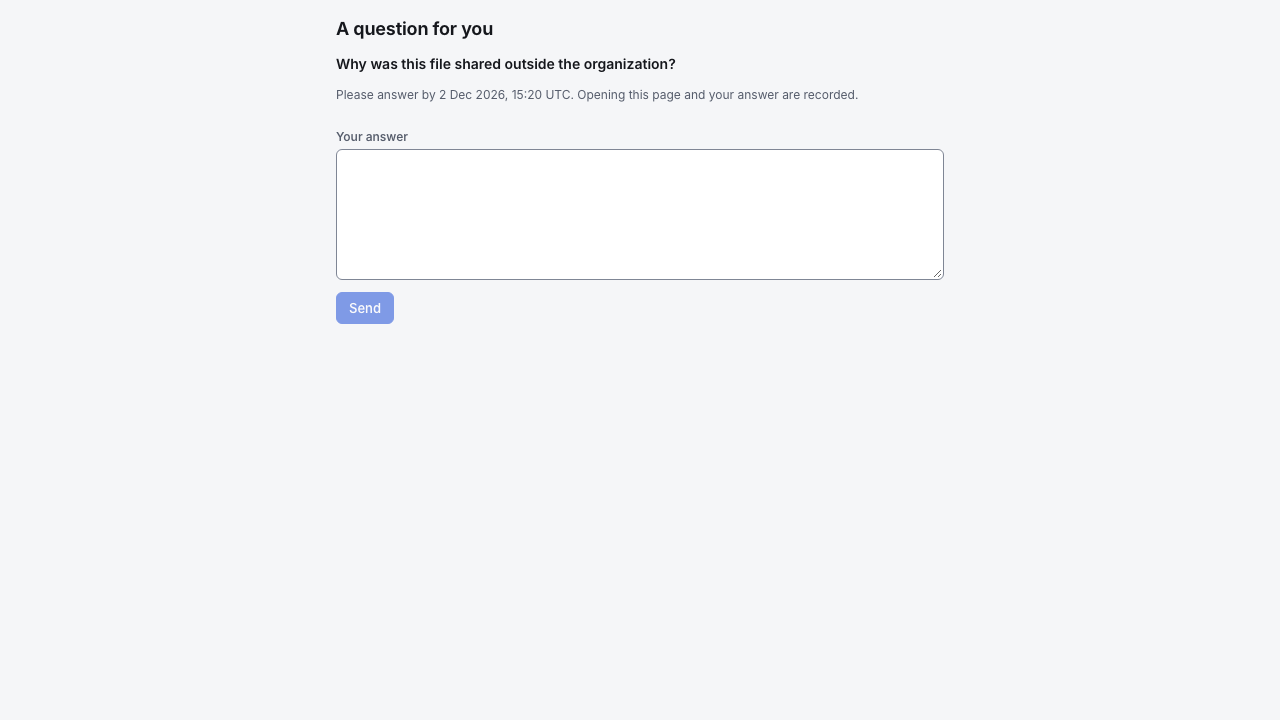
A question for you, the deadline, Your answer, and Send. The person can change the answer until the deadline. The console shows the answer on the case in Review. Without the whole link, the page says to open it with the link that was sent.
10
One path through a finding
The screens meet on a single case. This is the path the pictures already show, from a high-severity event to the person who did it.
- Overview puts high-severity events, findings waiting, high-sensitivity files, sharing outside, and personal addresses in one row. See these events opens Activity on the high-severity chip. Start reviewing opens the queue. See the files opens the related files.
- Activity is that list. In the picture, Benefits eligibility sheet - review.xlsx was downloaded, severity high, with personal, governance, business, financial, and HR information, by Maya Chen, in Teams. The severity chip and the filters are how you arrive at a row like that.
- The event panel is the row opened. It names the person, the label check, the source mark, and the finding. Investigate opens Forensics for that person. Ask for justification starts a case. Open in Review opens the finding.
- Review is where the decision is recorded: Acknowledge, Resolve, or Assign, with a reason, then the next finding. The same Benefits eligibility sheet sits at the top of the pictured queue as external exposure, high severity, still open.
- Ask for justification drafts a question to the person. Cases sends the one-time link. A question for you is where they answer.
- Forensics is Maya Chen’s dossier: her events, whom she met, the latest files, and the watch list and trust settings. The Benefits eligibility sheet is among her latest events. Their relationships, Personal addresses, and Trust continue the same person.
Inventory joins the same path when the question is the file as it stands now: open it from a row, or from the file panel, and the finding on it still offers Open in Review. Shared links, mass events, Scan coverage, every report kind, Exports, the audit log, and every Settings tab are the other surfaces on that same evidence. A report of the same month is the path told as figures you can print, export, or save.